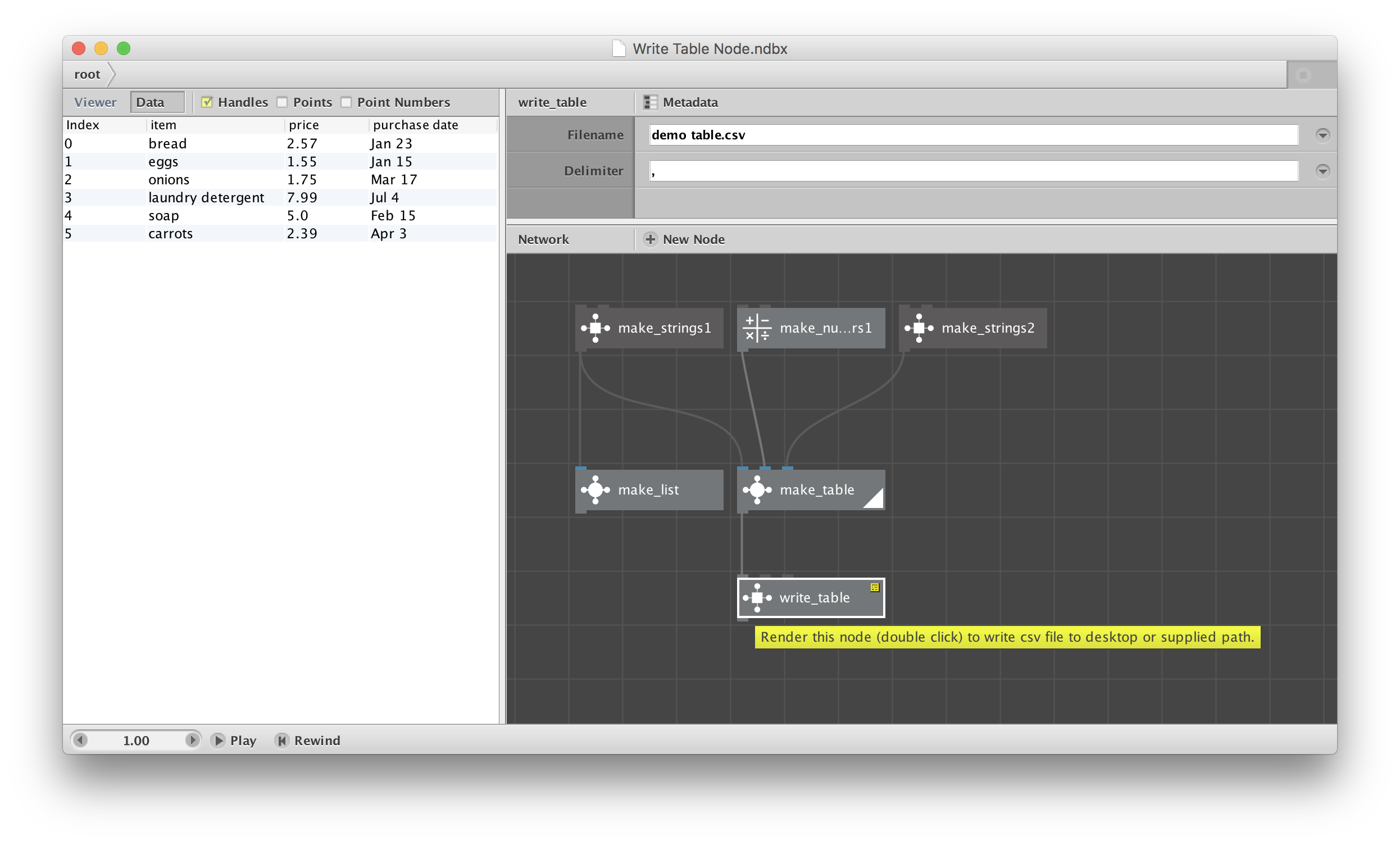
The attached demo contains a custom node, write_table, that turns any zip map into a csv file.
To use it, just attach any node that resolves to a table and double-click (render) the write_table node. If no errors occur the node will return "File Saved". You may then replace all the nodes used to create the table with a simple Import CSV node, open the file in Excel for further processing, or import it somewhere else (e.g. a separate NodeBox network).
The node takes two parameters, File Name and Delimiter. If you supply a simple file name (e.g. grocery list.csv) that file will appear on your desktop. To write to a specific folder, include that in the file path (e.g. groceries/feb2017.csv).
The delimiter is typically a comma but can be anything. If no delimiter is supplied, the node will use a tab (handy, since NodeBox can read tab-delimited files but will not let you enter a tab as a node parameter).
As with any custom node, you must copy/paste the node into your network, copy write_table.py into the same directory as your network, go to File/Code Libraries, use the + button in the upper right corner to add Python, and select write_table.py.
USES
This node is surprisingly useful, both for speeding performance of complex networks and for sharing information to separate Nodebox networks or elsewhere.
Complex NodeBox networks often have to import and process multiple csv or json files (sort them, merge them, filter them, etc.) before doing any drawing. If the files are large it may take ten or twenty seconds to repeat this process every time you change a color or add a new node somewhere, making design work tedious and greatly complicating the overall network.
With this node you can create one network to distill all the information you need into a single table, save that table as a csv file, and then create a simpler and faster network to import that table back in and focus on just the drawing part.
You can also use write_node to create a concordance file that supplies the data behind any SVG, PDF, or PNG you produce. For bubble charts, org charts, etc. you can save a separate file with data corresponding to each element in the chart along with its X,Y location in case you later want to filter or highlight particular values. A text concordance could supply searchable text and locations to supplement the unsearchable text paths produced by NodeBox.
Although we normally think of NodeBox as a tool for creating art and visualizations, it is also a great tool for data prep work. You can create a workflow that merges multiple data sources, sorts them, filters them, etc. and then saves the end result as a distilled csv file. This workflow can then be used again and again.
The write_table node is free to use by the NodeBox community for any purpose. If you find it useful please reply to this post and let me know.
Enjoy!
John