UPDATE: I have improved some of the nodes covered in this post. See further down in this thread for my update posts with the improved nodes attached.
These table nodes are now included in my Node Library: https://forum.nodebox.net/t/19229950/cartan-node-library-2-0
Tables are extremely useful for data analysis, visualization, and Nodebox projects in general. I included several table-related nodes in the first release of my node library. Here are four more that will also be included in the next release:
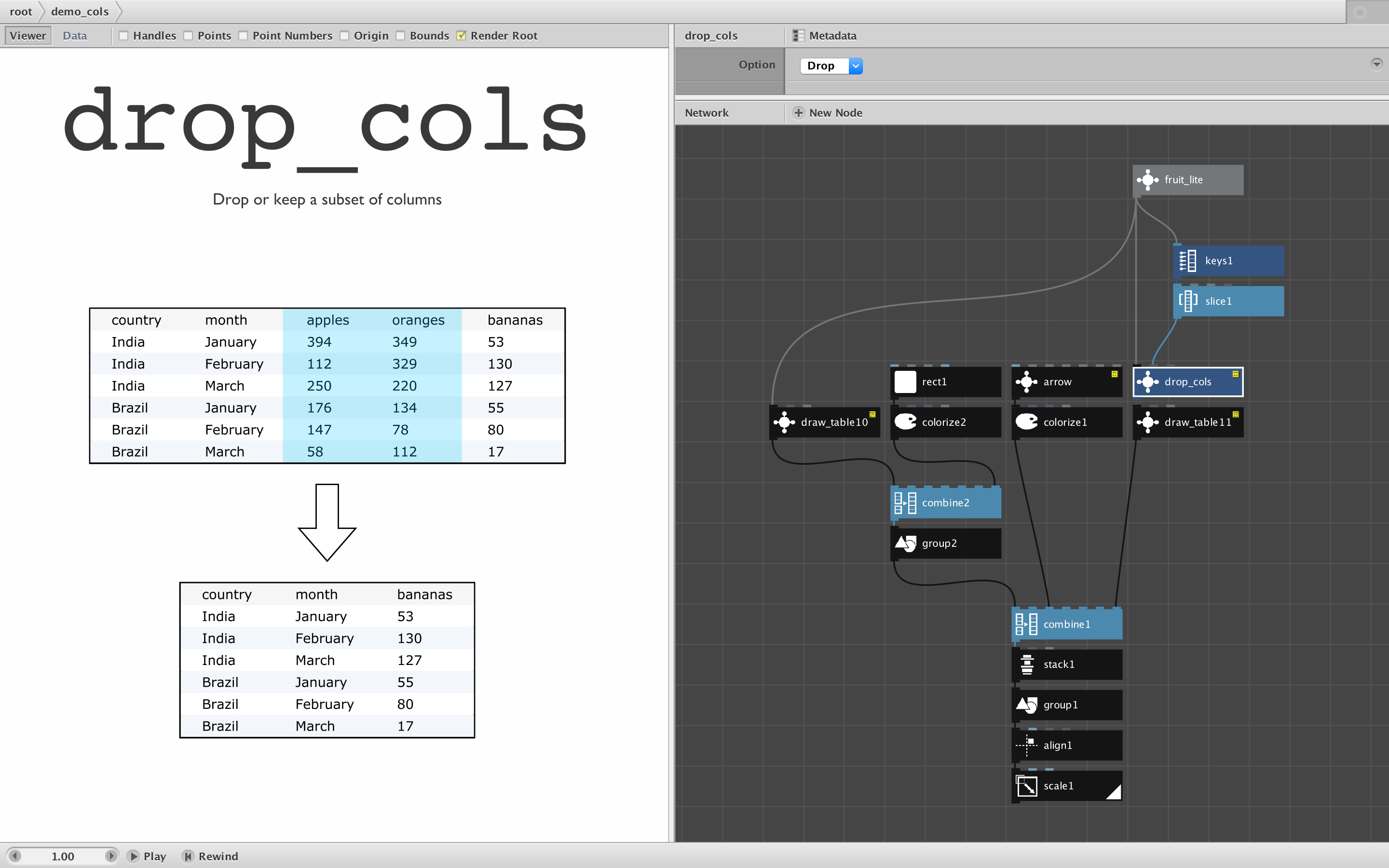
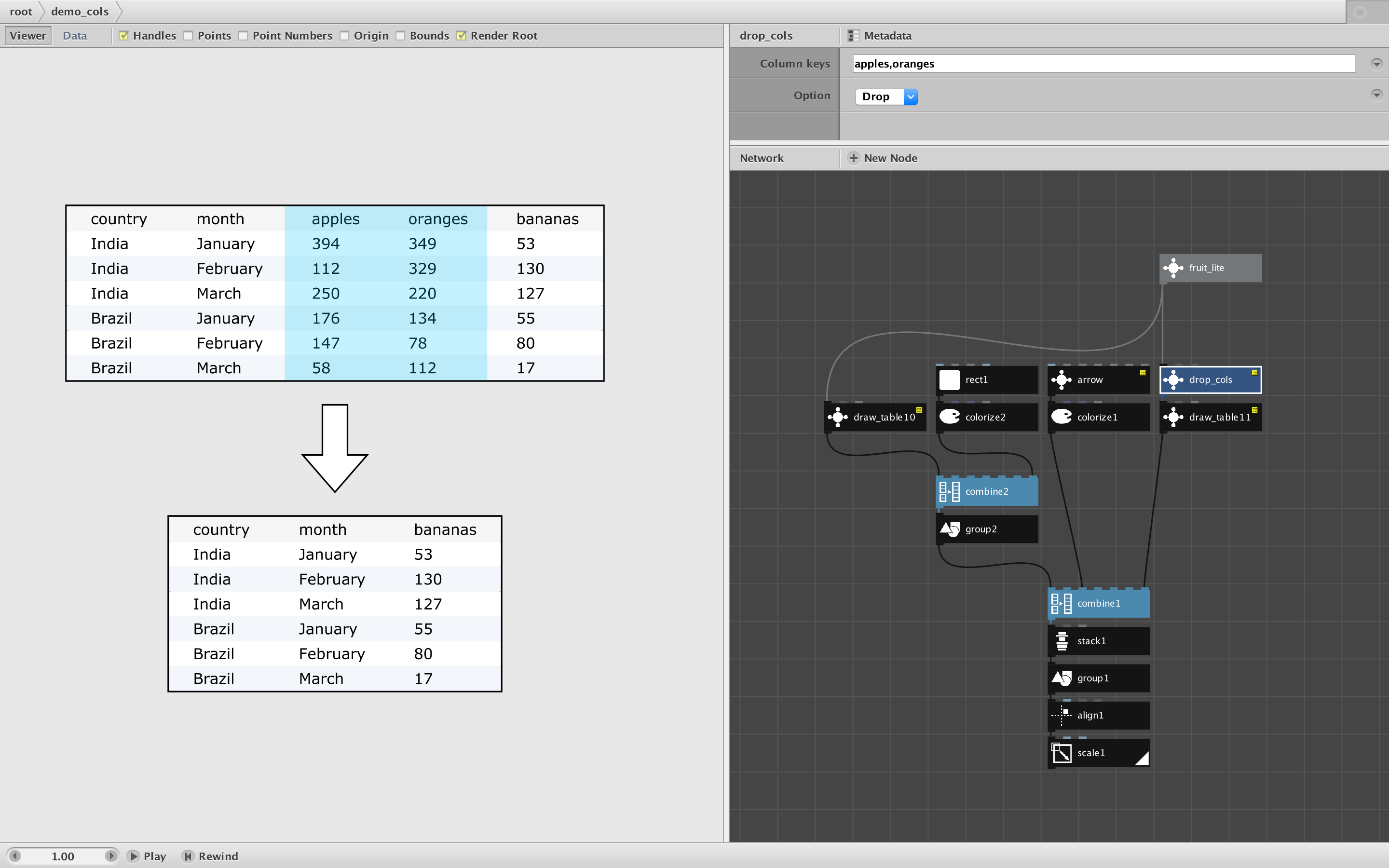
DROP_COLS
Pass this node a table and a set of keys. You will get a modified table with the columns for those keys dropped OR all columns dropped except those keys. This is a convenient way to reduce an unwieldy CSV file with many columns down to a more manageable size. With large files this can also improve performance.
You can also use drop_cols to REORDER the columns of a table. To do this, get a list of the table's keys (using the keys node), reorder that list (e.g. sort it), then feed the original table and that list to the drop_cols node and set the option to "Keep".
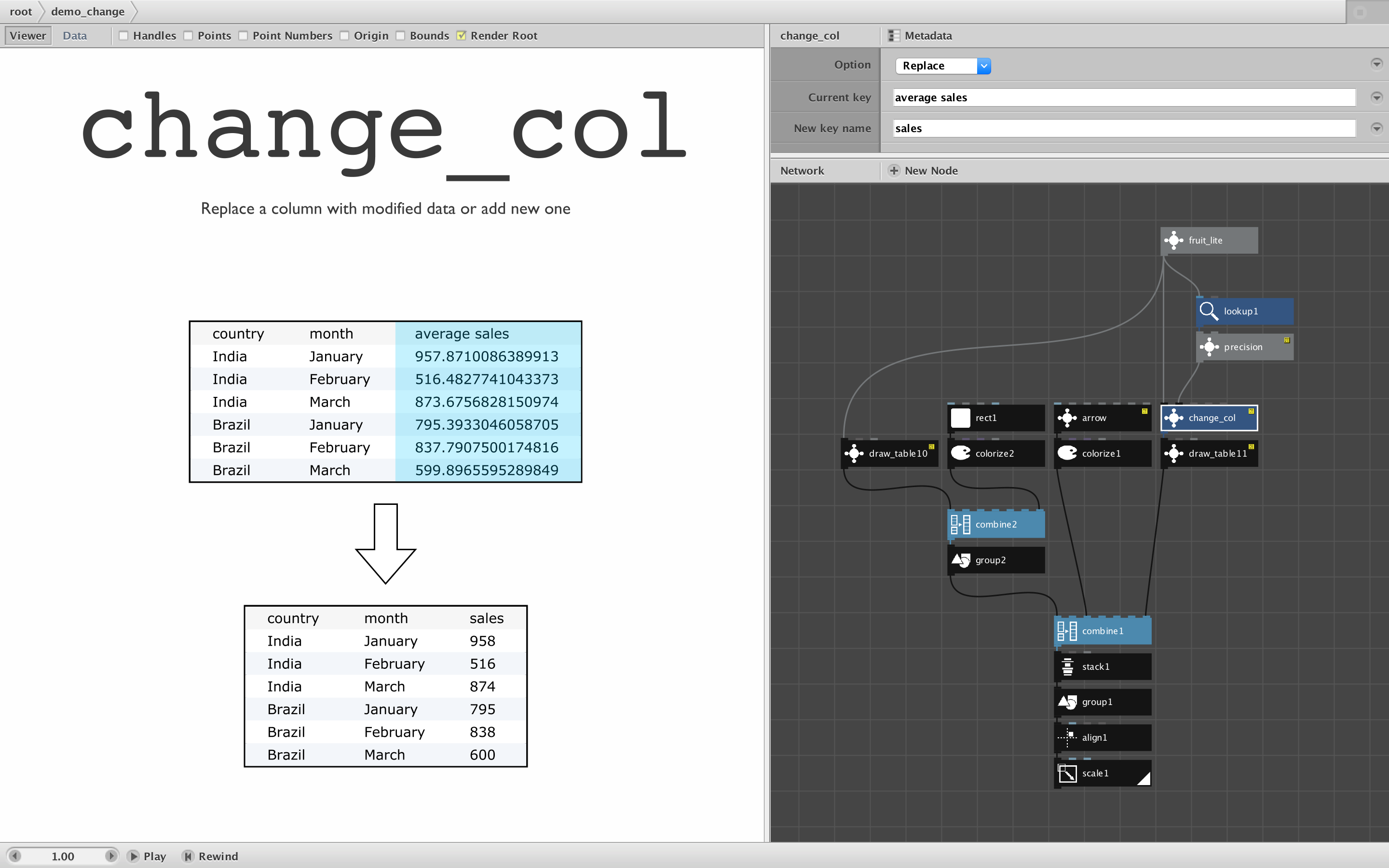
CHANGE_COL
You can use this node to change the contents in one column of a table, change a column header (key name), or add a new column before or after any existing column.
There are many situations in which changing the contents of an existing column is useful: rounding values or changing their numerical precision, abbreviating or clarifying labels, changing case, making timestamps more readable, replacing values with percentages or some other function, etc.
Change_col can also help with sorting issues. Sometimes numerical columns do not sort properly (e.g. sort 10, 11, 145 before 2). This happens when NodeBox interprets the column as strings instead of numbers. Using Change_col you can convert to strings by simply doing a lookup and feeding that into a number or integer node; the table then can then be sorted properly.
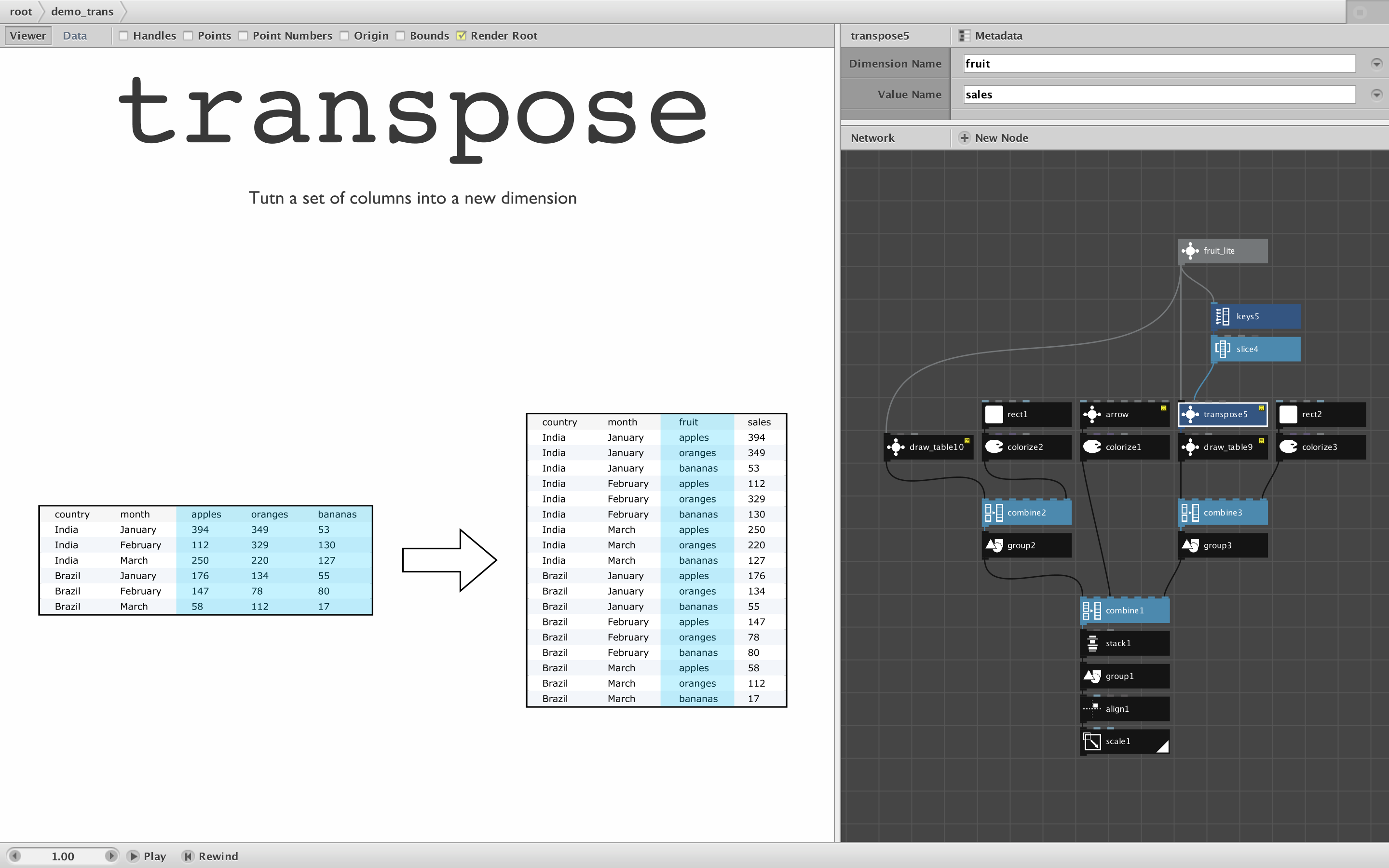
TRANSPOSE
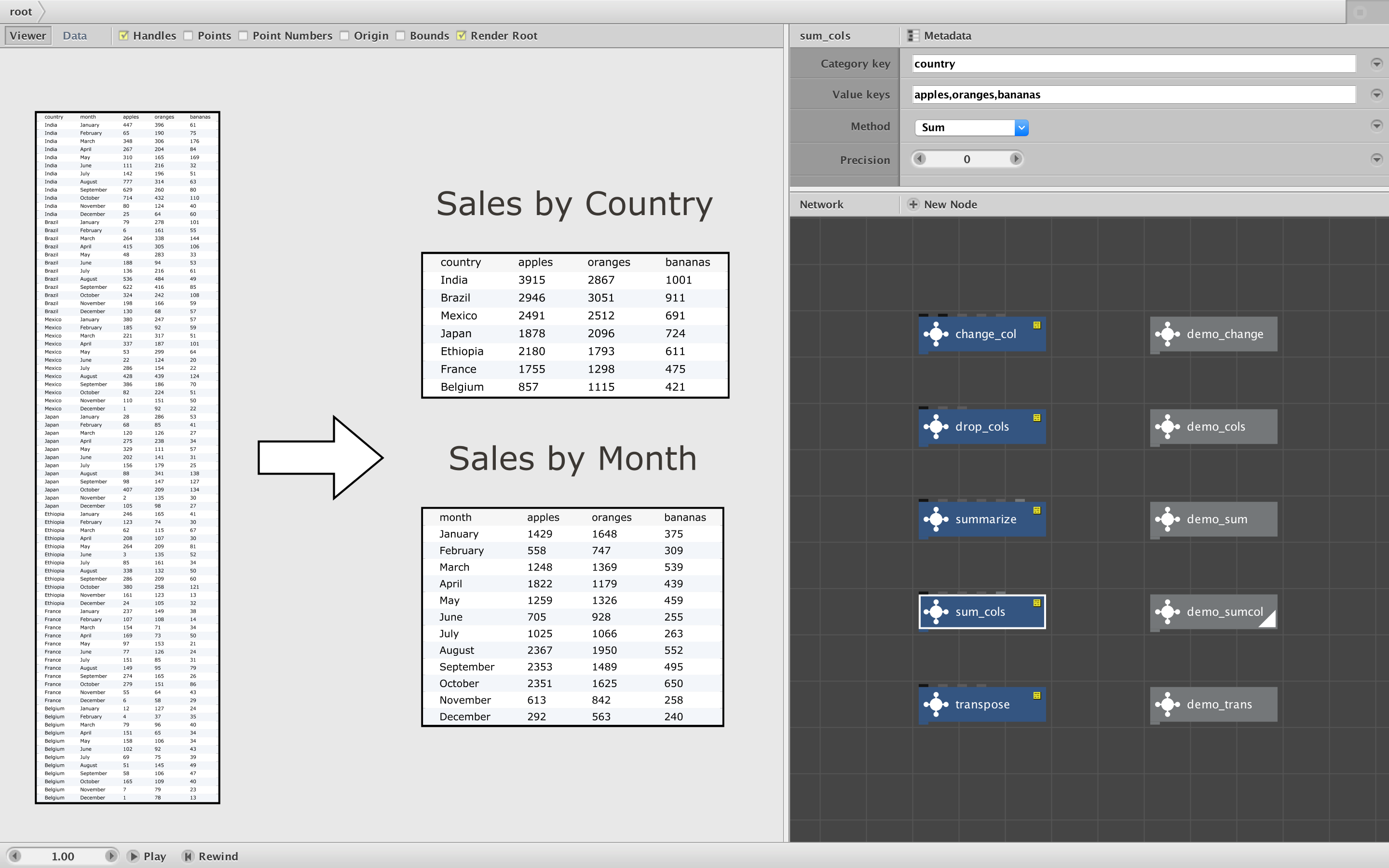
The transpose node allows you to specify a range of columns and consolidate those into a single new "dimension". For example, you may have a table with separate columns with sales data for each month of the year. Using transpose, you can replace those 12 columns with a single new "month" column. New rows will be added for each month, repeating as subheadings after any existing row headings.
Transpose does not alter or drop any values in your table; it just moves them from columns into rows. This can be surprisingly useful. It allows you to reorganize your data and filter it in new ways. It can also be used with the summarize node to "pivot" a table from one view to another.
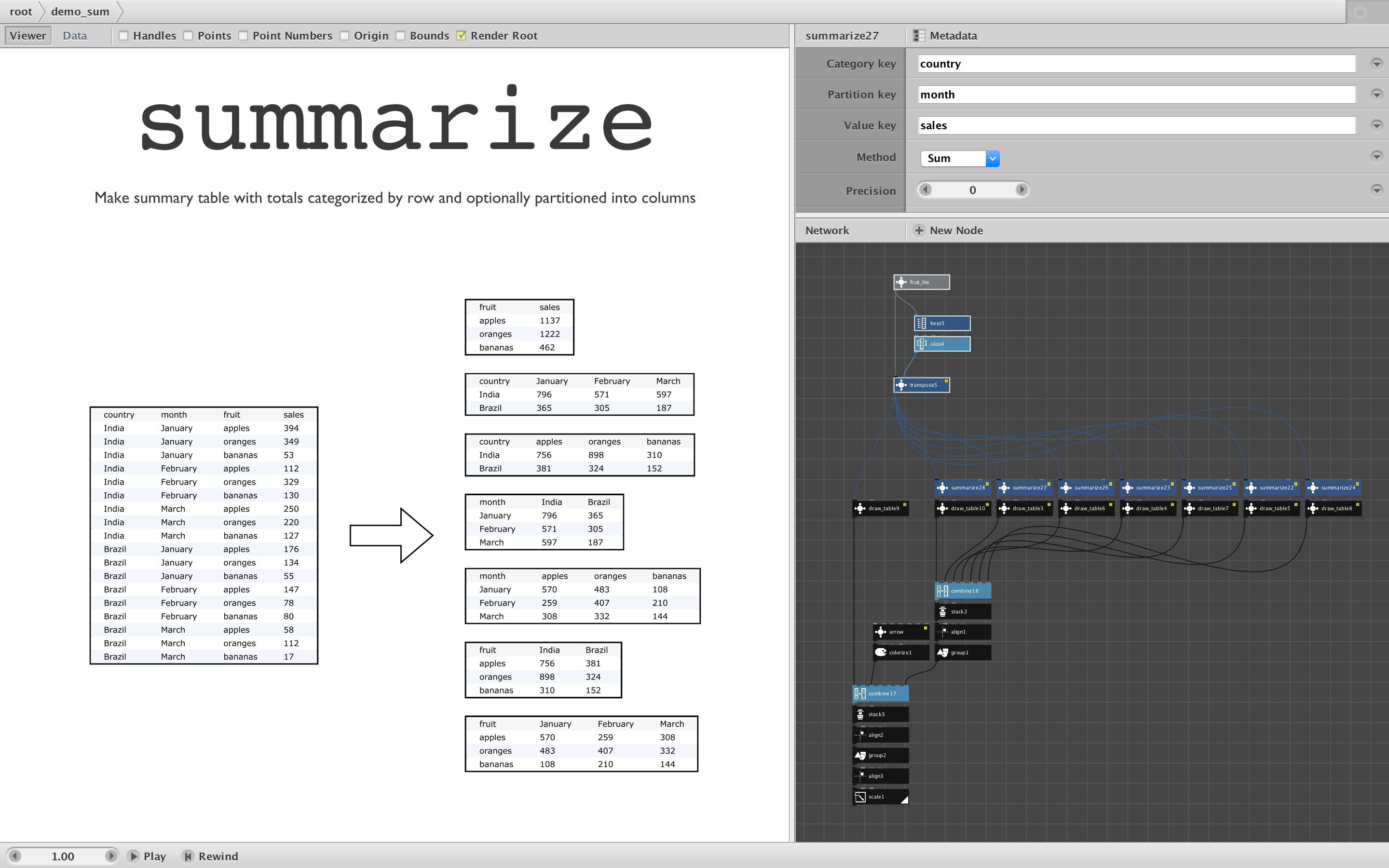
SUMMARIZE
Summarize is probably the most powerful and useful node in this collection. It summarizes an existing table by grouping together values in repeating categories and totaling them. It provides three types of totaling: sum, average and count. Sum is the normal form of totaling amounts. Average is appropriate for values like price or a person's height. Count can be used to simply count the occurrences of each row in the same grouping.
An example of count totaling is a character occurrence table showing the number of times each letter of the alphabet occurs in a given text. Enter your text into a characters node. Feed the output into both ports 1 and 2 of a table node; set port 0 to character,occurrences. Then feed that in to a summarize node. Set Category key to character and Value key to occurrences (leave Partition key blank). Set Method to Count and leave Precision at 0. Voila! A character occurrence table with only three nodes.
Sum and Average totals require numeric values under the Value key in the source table. You can set the desired number of decimal points for these totals using the Precision setting. Count totals do not require numeric values. When counting you can set the Value key to any key in the source table other than the Category key.
The Partition key is optional. If you leave it blank you will get a two-column table with category labels in the first column and totals in the second. If you provide another key from your source table as a partition, it will create new columns for each distinct value under that key heading and partition the totals under each of those columns. Using partitions you can create many different summary tables from the same source table (see screenshot).
Summarize is useful in and of itself. It's a great way to gain a high-level understanding of any new data file you import. It allows you to pivot data into different views. But this node is also designed to be used to create charts (line charts, bar charts, area charts, etc.). I am currently working on a set of chart nodes that take summary tables as inputs. I hope to release these soon with the next update of my node library.
Please give these nodes a spin and let me know if you have any questions or find any bugs.