John,
Thanks for the follow-up.
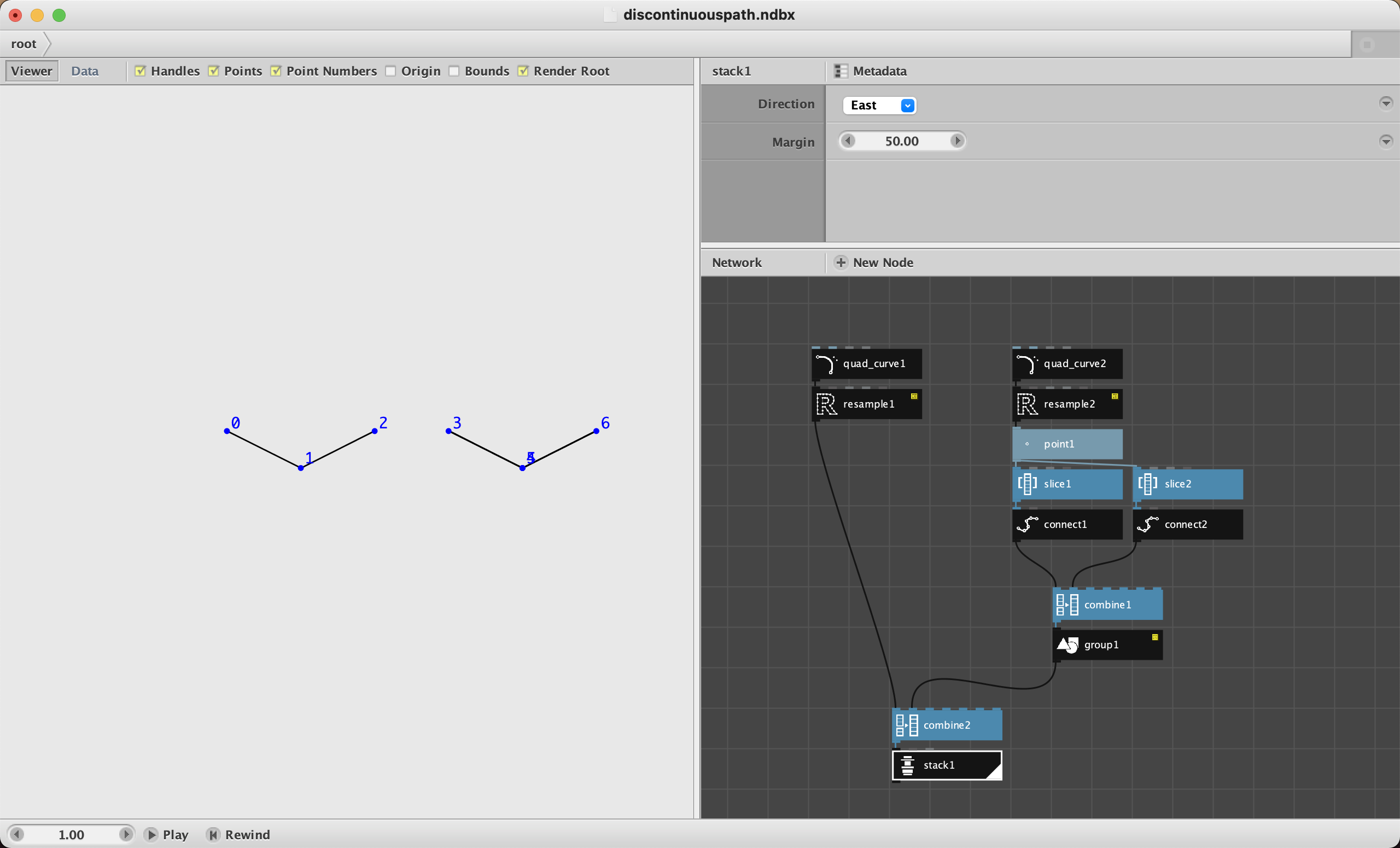
I would think a good plot node should automatically improve efficiency. There are a few simple things that could be done to improve efficiency. For rectangular plots we could automatically reverse the direction of every other row to prevent unnecessary travel time across rows. Discontiguous masks could be automatically sorted and direction reversed as needed to minimize distance between then end of one mask the the start of the next.
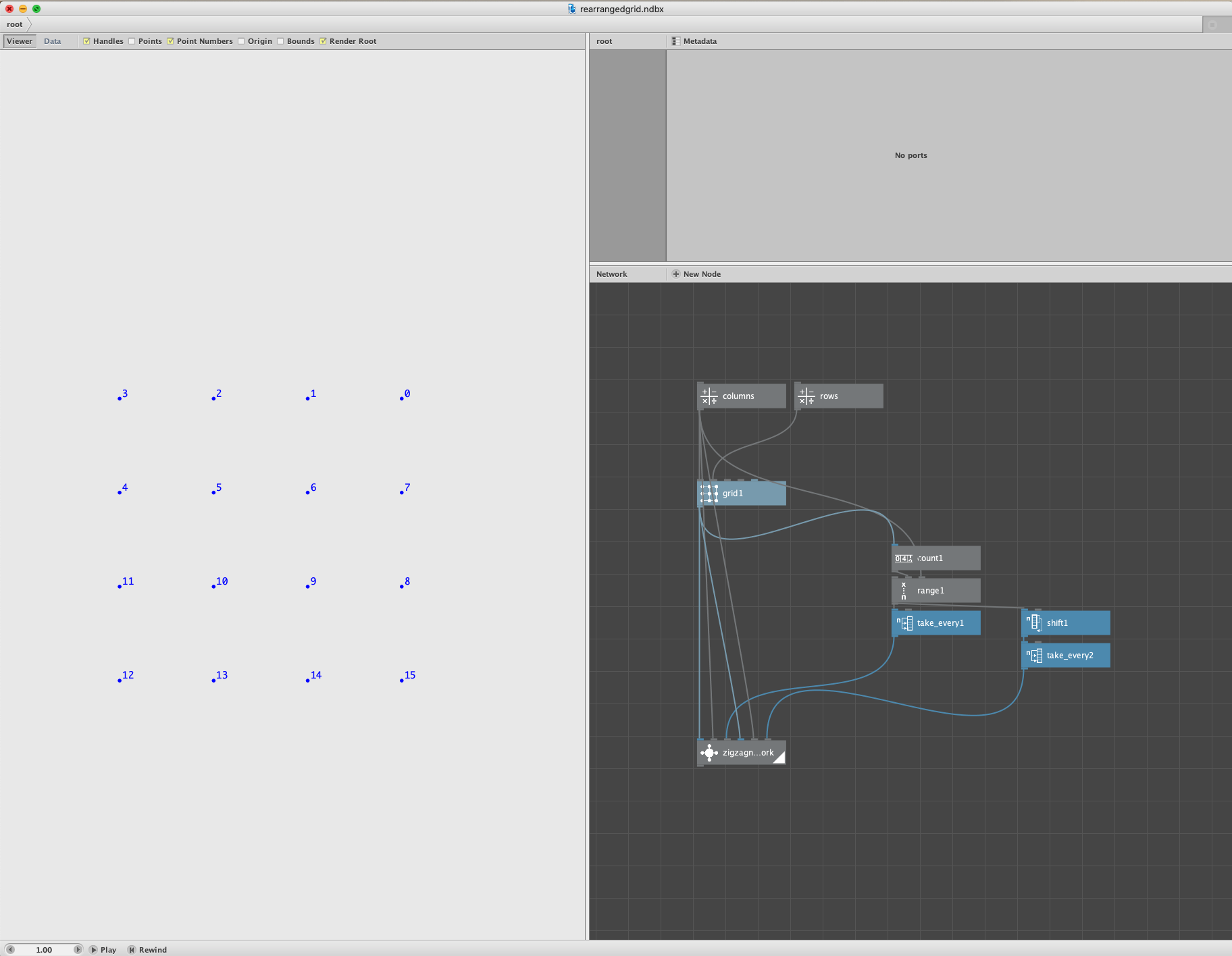
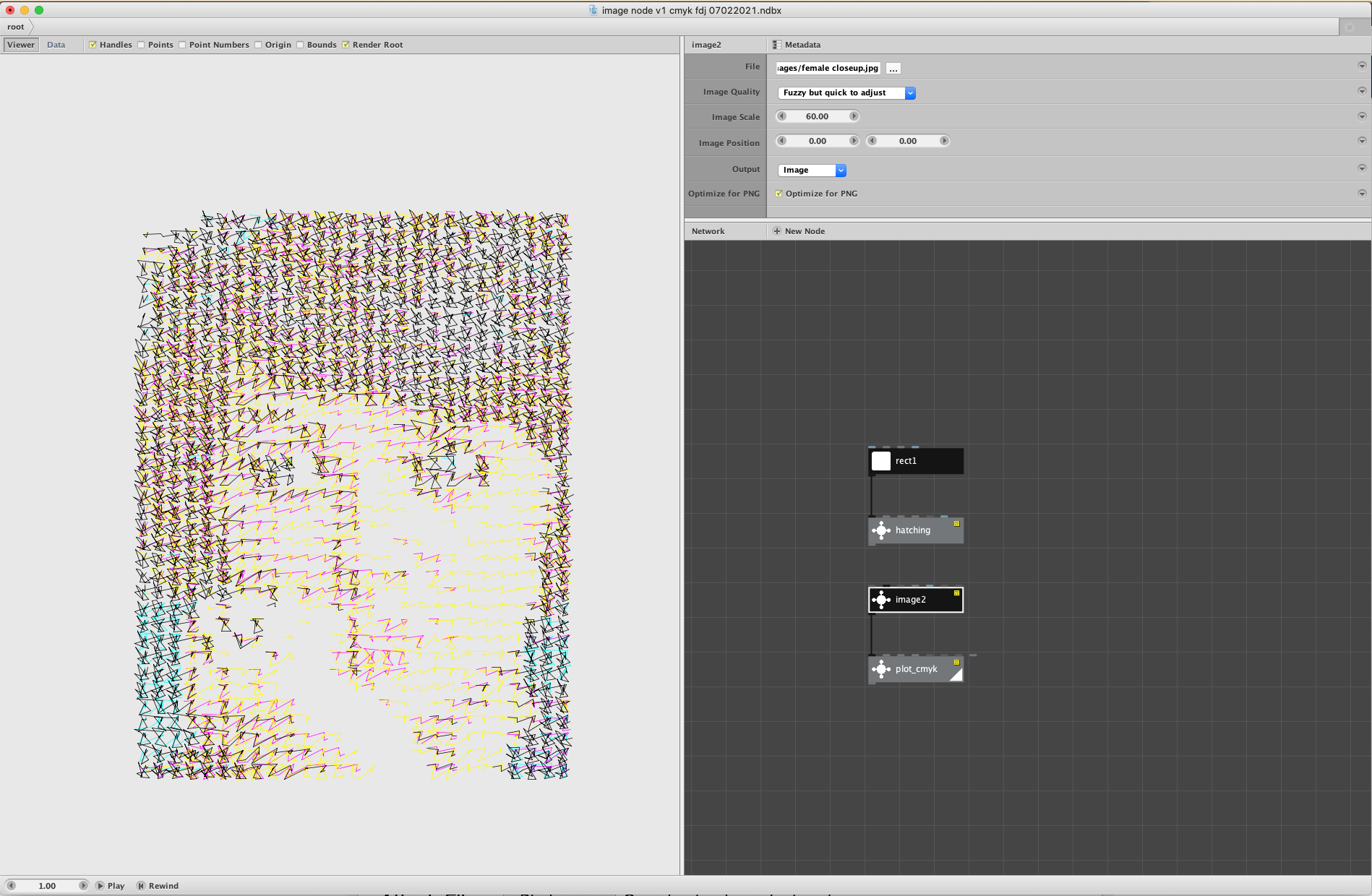
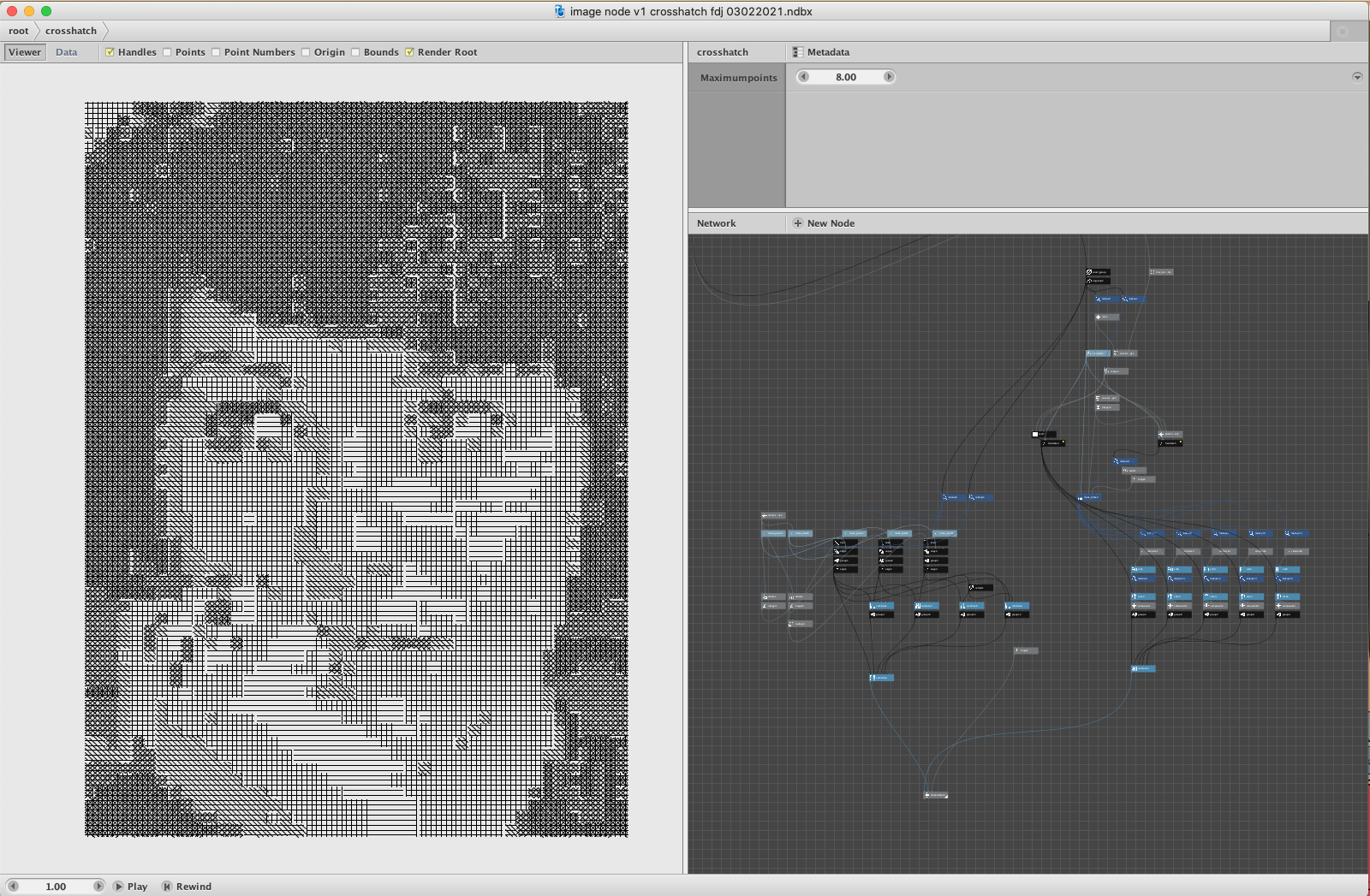
I would like to go along with the premise that a good plot is one that gets efficiently drawn. It does depend on the artwork what would be the best solution to achieve that though. When broad movements are left to right and top to bottom as in grid-based art, then a zigzag motion is a good solution. I’ve attached such an example to check whether we are talking about the same thing. Is this the general direction you are proposing? I can’t really picture or estimate what such a solution would be if things get more complex, like artwork placed on those grid points, or with circular or organic placing. But its worth exploring. I would consider the calculate-distance-node would come in handy.
I haven't even looked, yet, at your CYMK node; I presume it uses the same algorithm published on the forum. But we could make it so this node has the option of overlaying all four layers OR producing only one at a time. By feeding a frame node into the layer port you could automatically place each layer on frames 1 to 4 and the use the Export Range to export all four SVGs at once.
The CMYK-node is indeed largely the same as the Plot-node (with my minor additions). It calculates the different CMYK colour values based on RGB, then does the same as earlier: generate points and connect them by lines, but in addition also makes a cutout of alle the lightest values. Which makes the image less dense and results in less lines to draw.
It sounds great to export different color layers in one go. I’ve barely explored Nodebox’ animation capabilities, so I can’t really picture how that would work.
What other reasons beside color separation might you have for wanting to divide a drawing into separate layers? Different pen widths? Other reasons?
As far as I’m concerned using different pens (being it widths or colors) is the only reason to divide a drawing into separate layers. I can’t think of any other common cases. Perhaps it’s interesting to explore different speed settings for different layers, but that’s not something I’m considering. Another consideration is when plotting something on a larger scale than the working dimensions of the plotter. The Makeblock plotter I am using can plot on around A3 paper size and that’s sufficient for most things. If you want to plot something larger than the working area, the separation of the artwork in different pieces represented as layers could be useful. I could also cut the artwork in two pieces (or more) using Illustrator, I guess. But the times when I needed that are really rare.
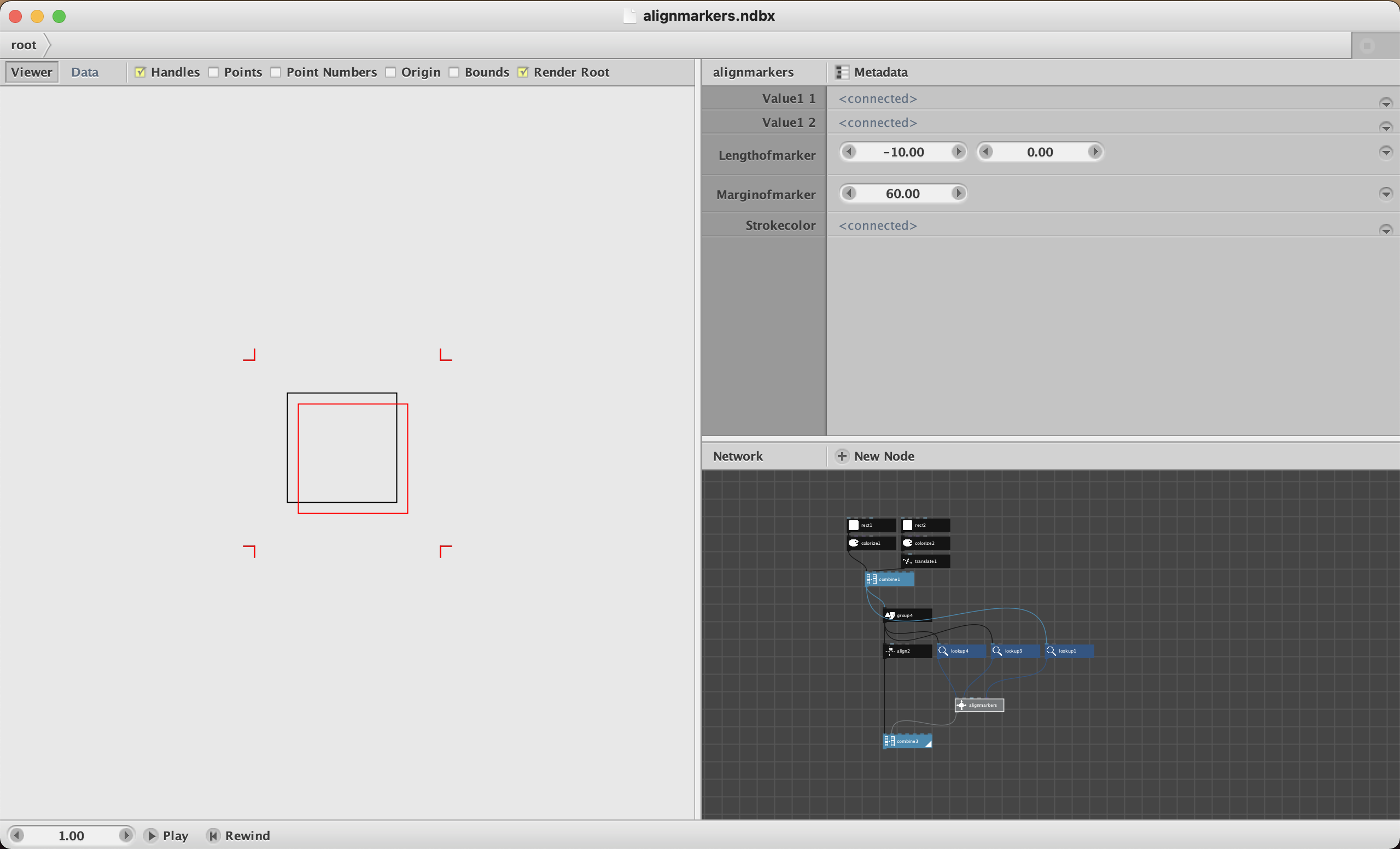
When outputting multiple layers, the plot node should always start from the same place (top left? bottom left?) so overlays will be properly registered. Should we include the registration marks in the output of each layer (as the first thing drawn)? If so, how far outside the margins of the rest of the drawing should the mark be drawn?
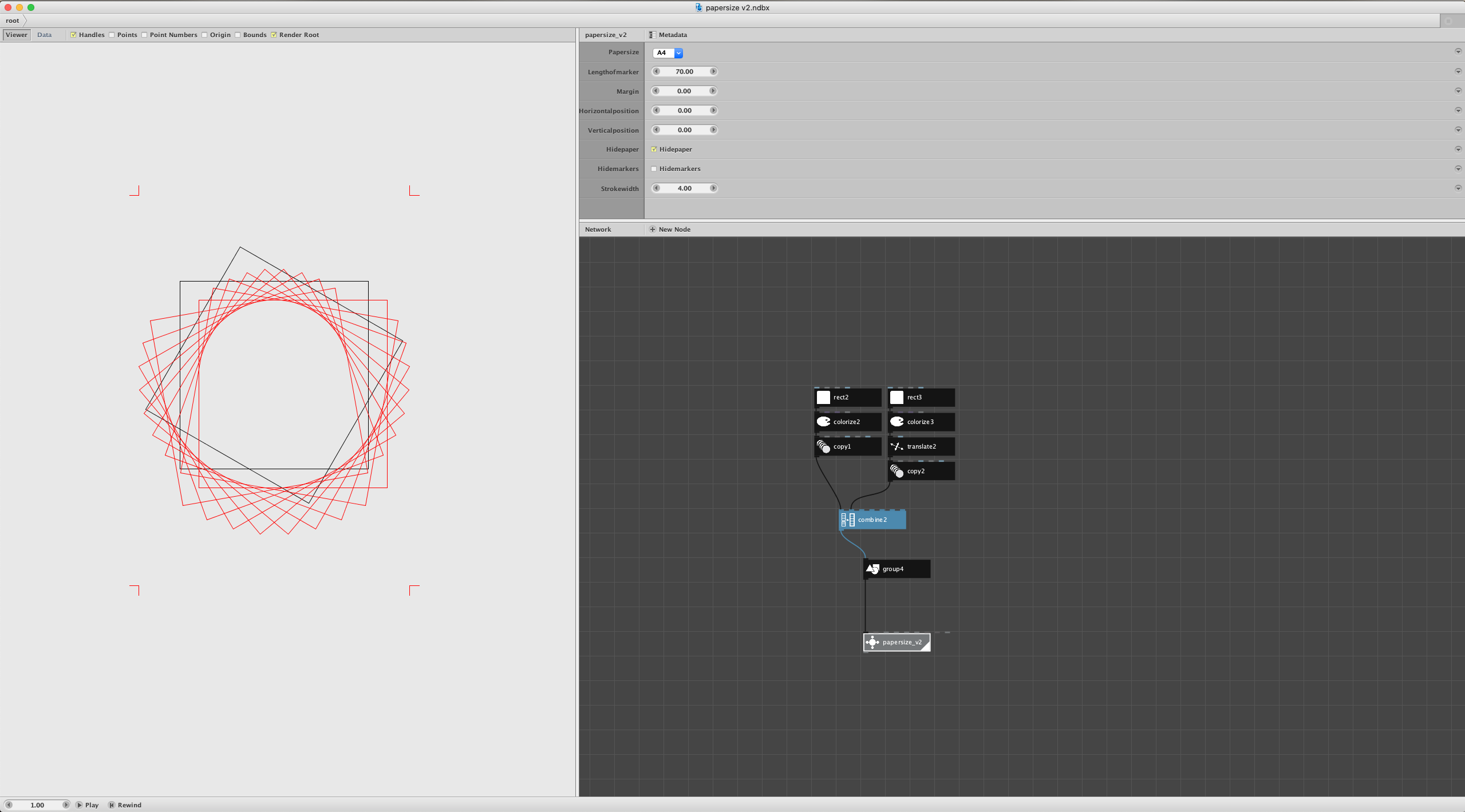
That’s correct. The alignment markers are placed the lowest, so they get drawn first. The plotter starts at top left. But that’s determined by the grid-node used in the alignment markers. It just follows the order of the point numbers. Currently I attach this alignment-node at the end of the artwork, but it also could be included in the artwork of each separated color. The preferred length of the markers depends on the size of the artwork. So I just take an intuitive ratio. The same accounts for the outside margins. In addition, you could factor in the dimensions of the paper after cutting the markers off, as a safe margin (this would become relevant when selling or framing the artwork; something I'm not doing right now). Now that I think about it, and after following another discussion about the canvas size here on the forum, it would be useful to get a better grip on plotting on certain paper sizes.
When using registration marks do you have to start each layer, watch carefully to see the new mark is aligned, and then quickly stop the plotter if it is not?
If so, would we need some mechanism to guarantee a pause between the mark and the rest of the drawing?
If so, what would be the best way to do this? (I could imagine drawing a second registration opposite the first; the travel time to second mark and back might be enough to stop the plotter in time.) Or is there some other way to do this?
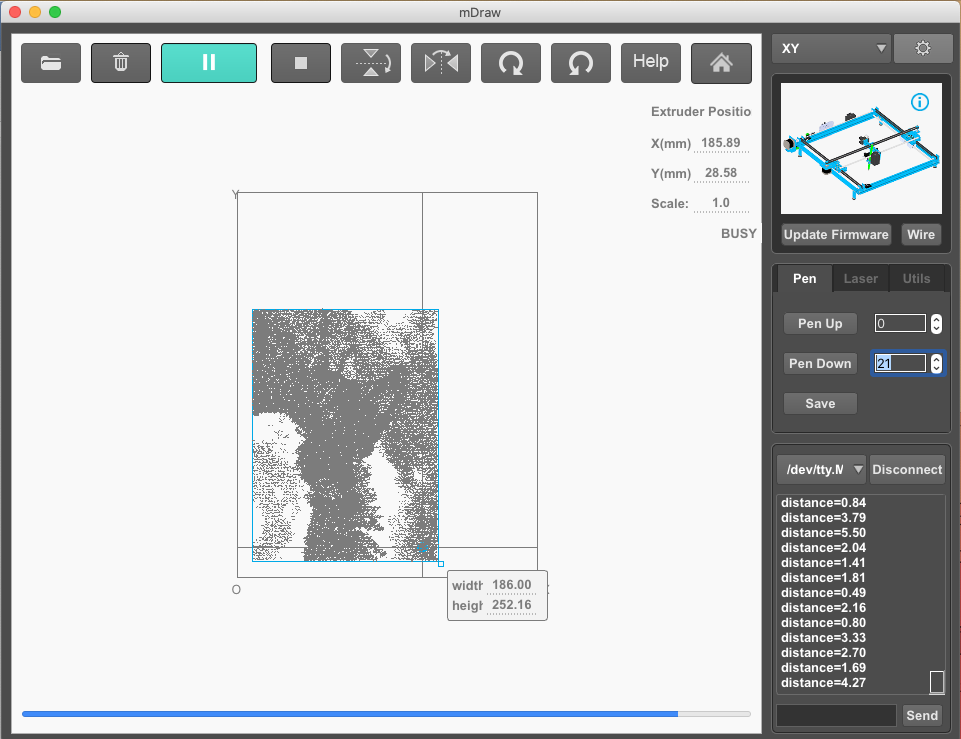
That’s indeed how things are going. I’ve attached a screenshot of the plotter software. Here’s how it goes: I make notes about the size of the artwork and it’s position (I’ve also been keeping notes what settings are best for different pens). After I’ve (the plotter) drawn the first layer, I position the artwork for the next layer and press ‘play’. I walk to the plotter to check whether the alignment markers are drawn on the exact same place. If yes, great. If not, I get back to ‘stop’ the software. Since it draws four markers, and it has to travel between all four, I have enough time to check how things are working out. Quite often, after seeing one or two markers, I know what to change in regard to the position, and am able to stop it before its starting with the artwork. To add extra time (which in some rarer cases could be useful) I would consider adding markers halfway the artwork between the markers at both ends.
A completely different question...
How, in general, do plotters handle dots? I presume they can effortlessly draw circles. But do they have a way of automatically filling in small circles to create dots? Or do you have to do that part yourself by drawing hatching or cross hatching lines inside the circles yourself?
Would it be worthwhile to make a node (or sub-node) to create plottable dots by automatically hatching small circles (or filling the using a spiral or whatever)?
The plotter can draw dots. Every point made in Nodebox becomes a dot (the pen just goes up and down without moving). Depending on speed, pen, paper combination these dots sometimes turn out as little lines, but alas. This sometimes causes trouble as well. In some cases Nodebox (or me) adds center points or points from which artwork is positioned. I usually check my artworks in Illustrator by using the Object > Path > Clean Up and delete those stray anchor points.
Larger circles that have to appear as dots should indeed be filled with lines. The people at Evil Mad Scientist do provide an Inkscape Extension to generate hatchfills. See link [here] (https://wiki.evilmadscientist.com/Installing_software). But, I consider it to be faster and easier to do it in Nodebox directly (especially since the Mask-node). There’s also this Stipplegen software which turn images into dots. See link [here] (https://wiki.evilmadscientist.com/StippleGen). Interestingly, it doesn’t generate dots, but spirals, which is a more efficient way to make fills (at least in regard to up and down movements, I sometimes suspect the plotter to faster handle straight lines in comparisons to curves). The software is quite slow, though. I would expect the Image-node to handle a dots-filter based on spirals faster. But than again, the StippleGen first generates Voronoi-cells (and if I am correct Nodebox isn’t able to) and calculates the shortest distance between each path (so-called TSP).
Hopefully this turns out to be helpful in regard to the development of more plotter-nodes.
Floris