Attached is a demo with two new nodes: make_ramp and apply_ramp.
Make_ramp makes it easier to create a curve you can use as a ramp in animations to control the way a value changes over time. The value might control the diameter of a circle, a coordinate for a moving shape, a zoom factor, a color gradient or any number of things. Instead of just increasing the value linearly by feeding in a frame node, you can use a ramp curve to make the value go up and down, faster and slower as the frame count increases.
This is also what my easing node does, but you have to choose from a set of canned curves like bounce or expo. The make_ramp node allows you to create your own custom curve for even finer control. You can also just use it to make interesting curves for any purpose (not just for animations). Ramp curves move from left to right and have a start, stop, and up to four inflection points.
Make_ramp takes 7 parameters:
- Starting height. The height of the curve at any point determines the output value.
- Segment 1. The first inflection point. X = width (1 or greater), Y = height
- Segment 2. The second inflection point. Set width less than 1 to eliminate this point.
- Segment 3. The third inflection point.
- Segment 4. The fourth inflection point
- Segment 5. The end point. Height (Y) is the final output value.
- Curviness. 0 gives you straight lines with sharp corners; higher values add curviness for softer transitions.
Notice that the x values in the segments are widths, not x coordinates. This makes is easier to adjust one segment without having to change all subsequent segments. When designing a ramp curve you might want to choose widths that sum to 100. That way, the width of each segment will indicate the percentage of time spent on each phase of movement. But you can choose any widths you want and just render the node to see how your changes affect the curve shape. The actual film length can be determined later using the apply_ramp node.
Apply_ramp uses a ramp curve to generate a controlling value. It takes 4 parameters:
- A ramp curve. This can be the output of a make_ramp node or certain other open curves.
- Frame. The frame node used to drive an animation.
- Total Frames. Length of your movie, starting with frame 1.
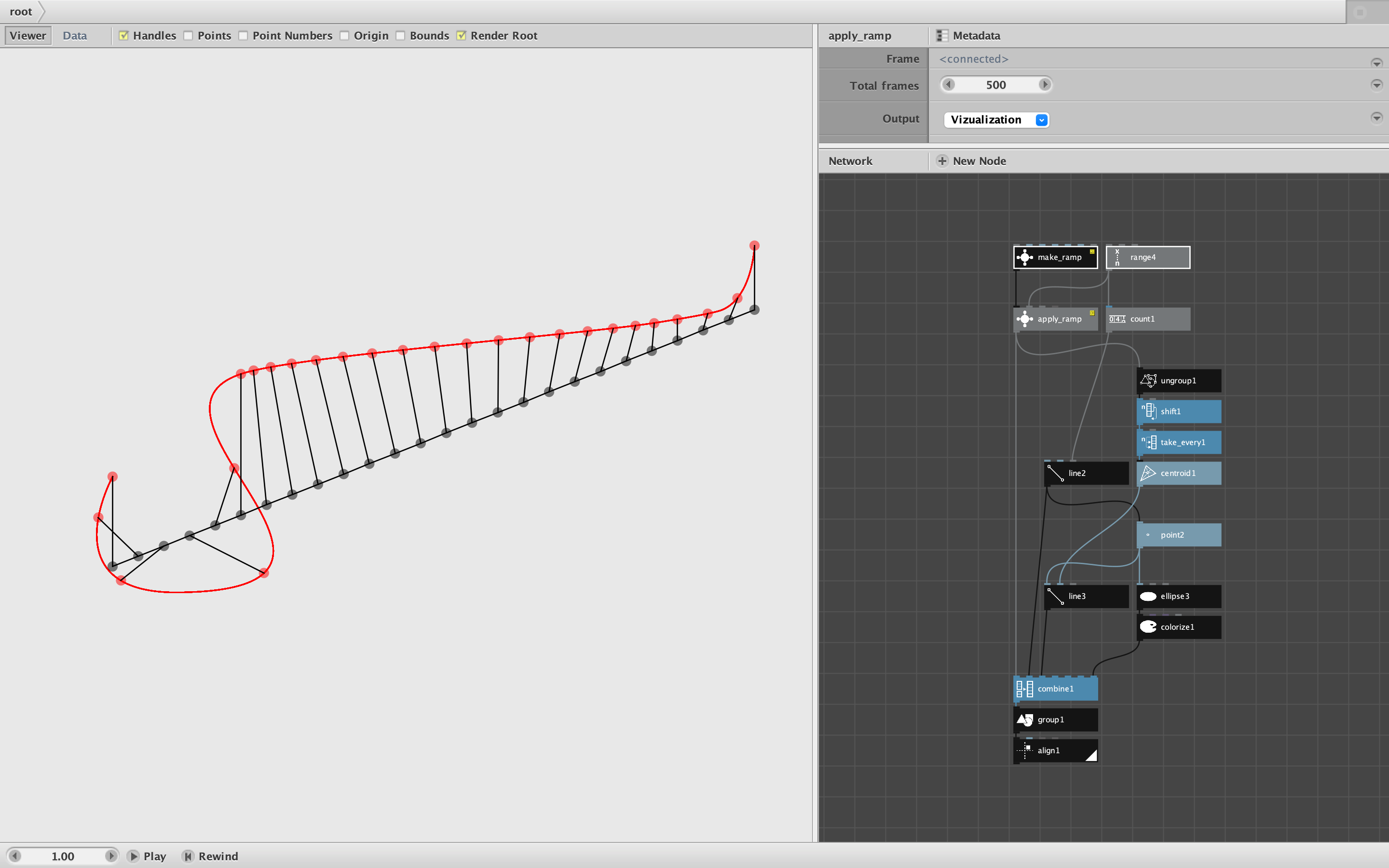
- Output. "Value" outputs the controlling value. "Visualization" outputs a scaled ramp curve with a moving marker (useful during testing).
These two nodes work well together. You can create a standard ramp curve at whatever total width is most convenient, then use the same curve to drive movies of different lengths, or easily change your movie length during development without adjusting the original ramp.
Although apply_ramp is designed to be used with make_ramp, you can also use it with other open curves as long as its inflection points steadily increase along the x axis. The demo shows an example using my waveform node to generate a sine wave. If you want positive control values you will want to translate your curve above the x axis of the origin (so that all Y values are positive).
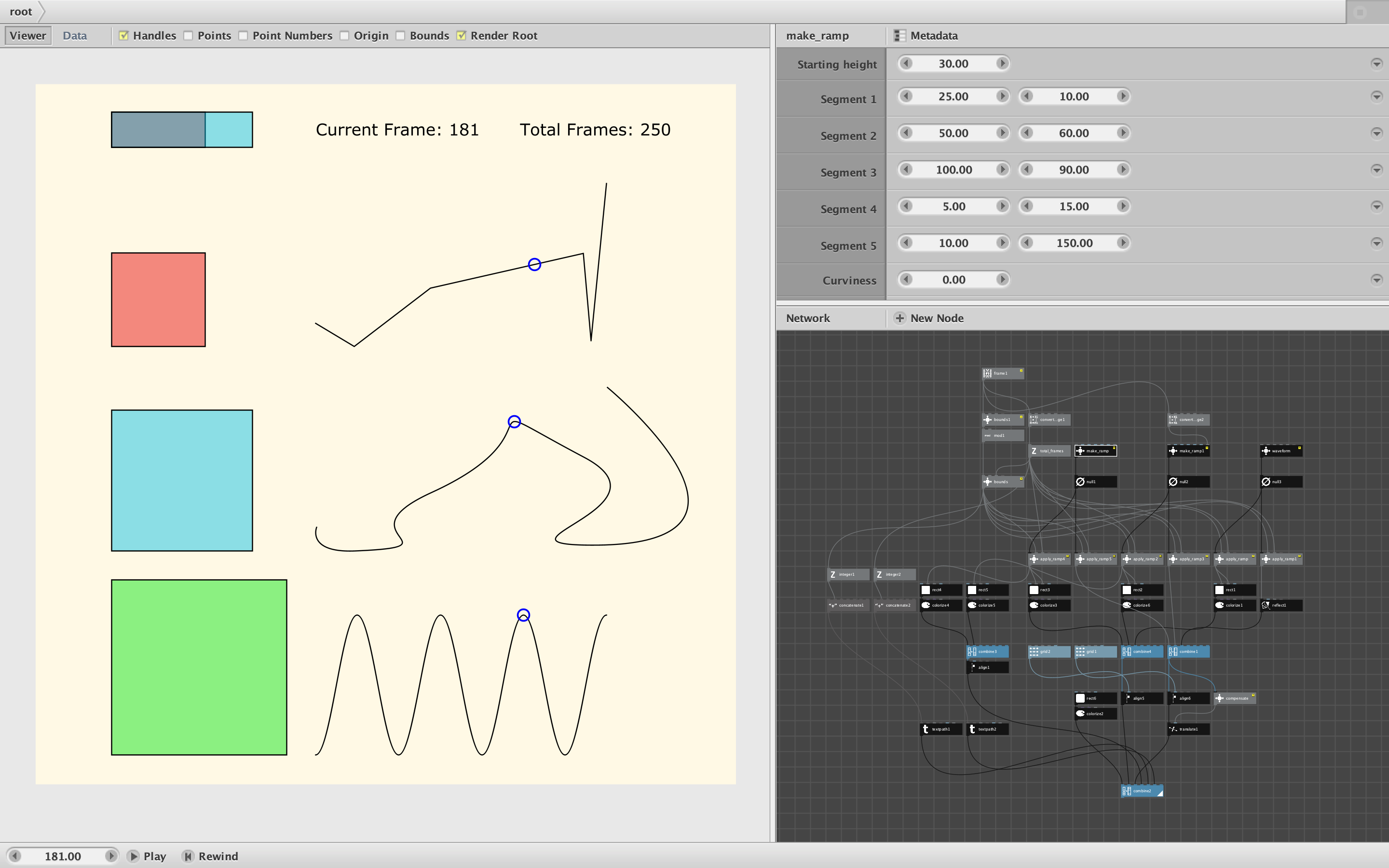
The attached demo (see screenshot) shows three ramp curves controlling the size of a square:
- Red: A straight line curve with four inflection points.
- Blue: The same curve softened to an extreme amount
- Green: A sine wave
The bar at the top shows the effect of adding curviness to a straight line ramp curve. At the key infection points, the two ramps produce the same control values. But in between, the softened curve may produces higher or lesser values (which will cause blue or red sections in the overlapping bars).
I have also attached a movie showing the three ramps, first simulating an animation of length of 100 (during which time the second ramp becomes steadily curvier), then an animation of length of 250.
These nodes were inspired by a thread started by Gabriel. I haven't yet used them in my own projects, so they may require some further polishing. If any of you use these nodes, please report back and tell me if they worked.
Enjoy!
John