NOTE: SEE BELOW FOR AN UPDATED VERSION
Attached is another new color node: palette. Palette makes it easier to deal with palettes imported from other tools. You can also use it to expand and tune an imported palette.
Palette can import external palettes as either a color string or as a list of colors.
Most external palette tools allow you to export or copy palettes in the form of a comma-separated string of hex codes. The palette node will accept many different formats of such a string, as long as the colors are represented as hex codes (not RGB triplets). It will automatically remove any brackets, braces, parentheses, or quotes, will accept commas or spaces or semicolons as delimiters, and will supply pound signs at the front and ff alpha codes at the back if not already present. I have tested it with many different formats; if you find one my palette node doesn't accept, please let me know.
The color string input makes it easy to paste and go. But in some cases, if you are importing colors from a CSV file or using the output of some other node (like my colors node), it may be more convenient to use a list instead of a single string. So as an alternative, you can feed a list of colors into the palette nodes color list port. If it sees any colors in this list, it will use those instead of the color string.
In addition to either a color string or a color list, palette takes five other parameters:
- Number of colors. The number of colors you want in your palette or spectrum. If this number is the same as the number of colors in the incoming string or list, palette will simply output those same colors, since no interpolation is needed. You must have at least two colors; a setting of 2 will output the start and end of the incoming colors.
- Color space. The color space used to perform interpolations. There are currently three choices:
- RGB - Use Red, Green, and Blue values
- HSL - Use Hue, Saturation, and Lightness (Brightness) values with hues forming a cylinder instead of a cube. UPDATE, now called HSB. See note later in this thread.
- OKLAB - Use a perceptual space described here: https://bottosson.github.io/posts/oklab/
- Soften - Create smoother transitions between colors. The default value of 0 uses linear line segments to interpolate colors. Increasing this value uses a curve instead; the higher the Soften value, the curvier the curve. Values between 20 and 40 often produce good effects; higher values or negative numbers may introduce ripples or have other unpredictable effects. This adjustment is similar the the "bezier" setting in other palette tools.
- Intensity. Heighten or flatten the color values produced. The default setting is 100. Increasing this value with make the colors more intense. In the cubical RGB and OKLAB spaces this will make the colors lighter until all colors turn white; in the cylindrical HSL space the colors will become more saturated. Lowering the intensity in all spaces will make the colors darker and muddier; reducing intensity to 0, the minimum value, will turn all colors black.
- Correct lightness. Checking this box will try to compensate for the way the human perceptual system responds to light; it is similar to the "Gamma Correction" found in other tools. The default setting is ON. For more information about the formula I used here, see https://bottosson.github.io/posts/colorwrong/#what-can-we-do%3F
You should not be too concerned if you do not fully understand all the above settings. Just try changing the settings and see what happens to your colors. Use them to tune your palette until you get the look you want.
If you are creating hundreds of colors to create a smooth spectrum, you may want to feed the palette node directly into the fill port of a colorize node attached to a thin rectangle, then stack those rectangle to form a visible spectrum. You can then adjust the settings of the palette node to tune your spectrum. Some settings, like soften or correct lightness, may only be really noticeable when used in this way to adjust a full spectrum with hundreds of colors. (The palette node is a tad slow, so a spectrum with hundreds of colors may take a few seconds to update each time.)
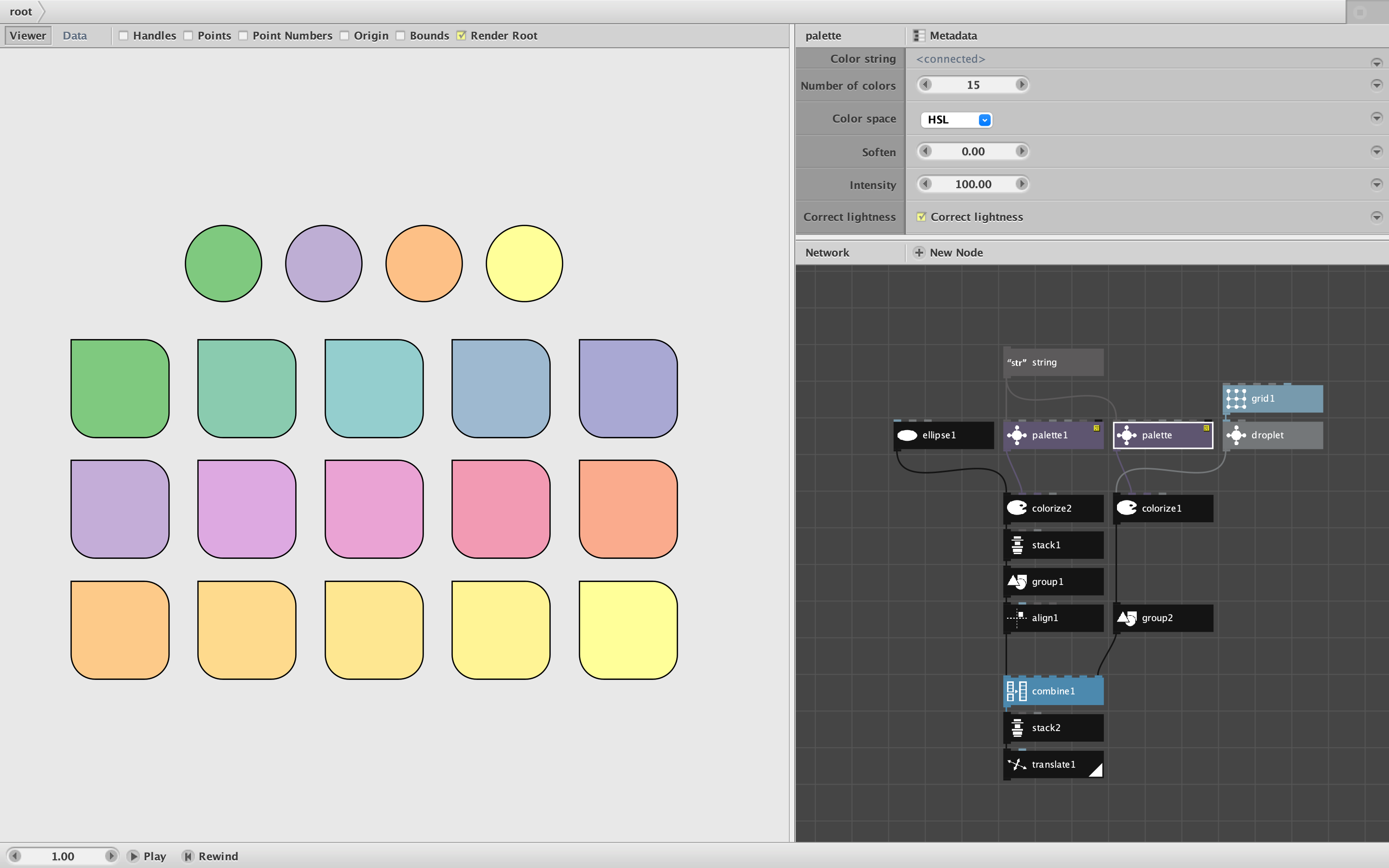
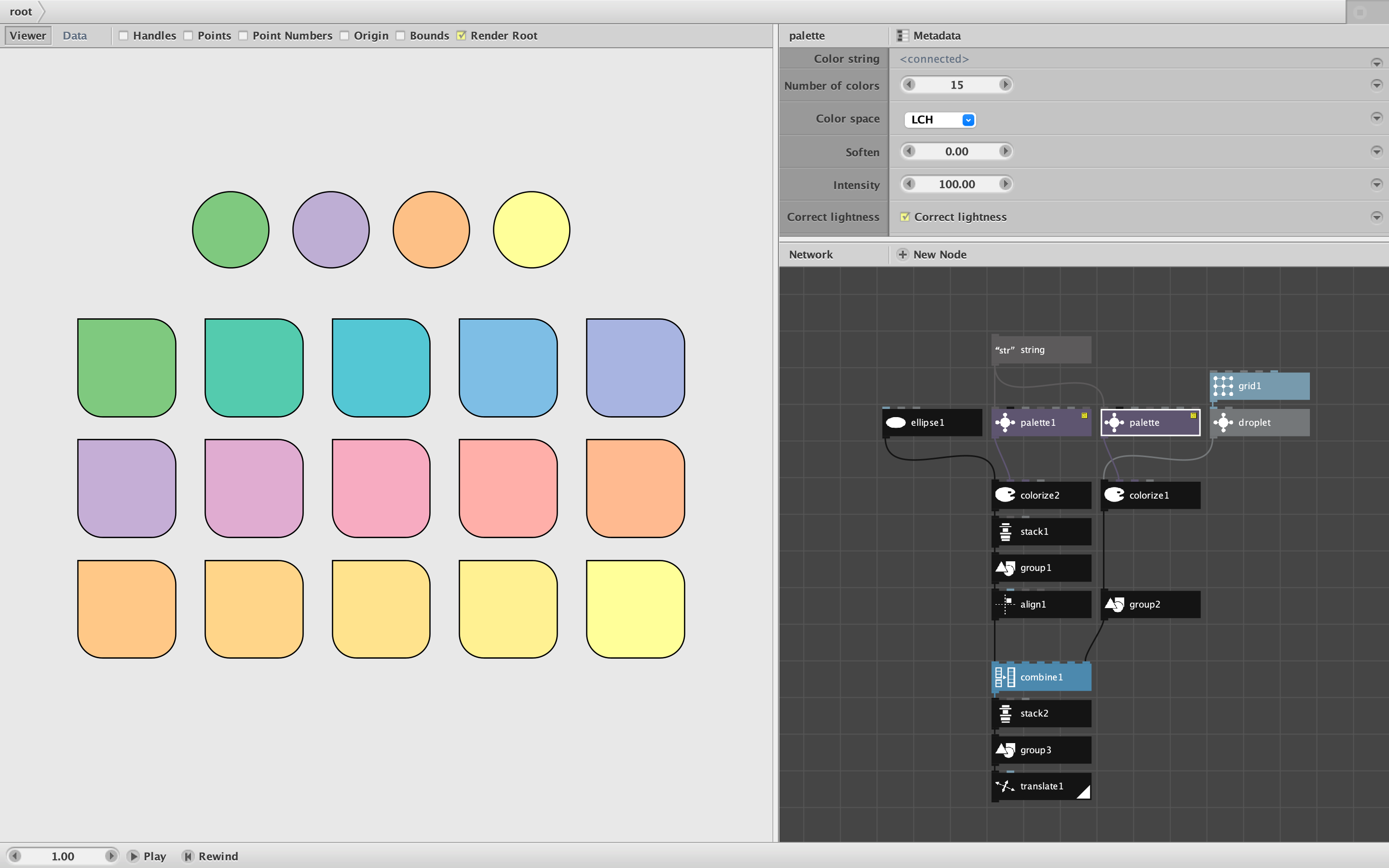
The attached demo shows an example which turns a simple four-color palette into a larger palette of 15 colors. The start and end colors are the same; the intermediate values are interpolated to form smooth transitions that pass through (or very near to) the other colors in the original palette.
As you can see in the network pane, the same four-color palette string is passed to two palette nodes. The one on the left is also set to 4 colors, so just passes them through to form the four colored circles. The one on the right is set to 15 colors and uses the HSL color space to form the intermediate values for the 15 "droplets" below the circles.
Please give this node a try and report back. I always say that, but this time I really mean it. Palette is a somewhat experimental node and to be honest, I'm not entirely sure I got it right. Color theory is hard, experts disagree, and I am limited by what I can do in NodeBox without access to excellent color libraries like chroma.js. I tried my best to get the math right, but may have made some mistakes along the way.
The only way to know if I got this node right is for Nodebox users to try it and see if the tuning options are sufficient to give them the palettes and spectra they need.
Happy coloring!
John