UPDATE: SEE 3.4 VERSION BELOW
Attached is a completely revised version of my old blend_color node.
The original version was very simple. It took an opaque background, a translucent foreground, and returned a solid color matching what would happen if the foreground was superimposed over the background. This made it possible to create color keys for overlapping areas in Venn diagrams.
The revised version is much more powerful. I had three goals:
- Handle more than just one foreground color
- Handle more blending modes
- Handle varying transparency in all those modes
The new blend_color node takes just 3 ports:
- Background
- Foregrounds
- Blending Mode
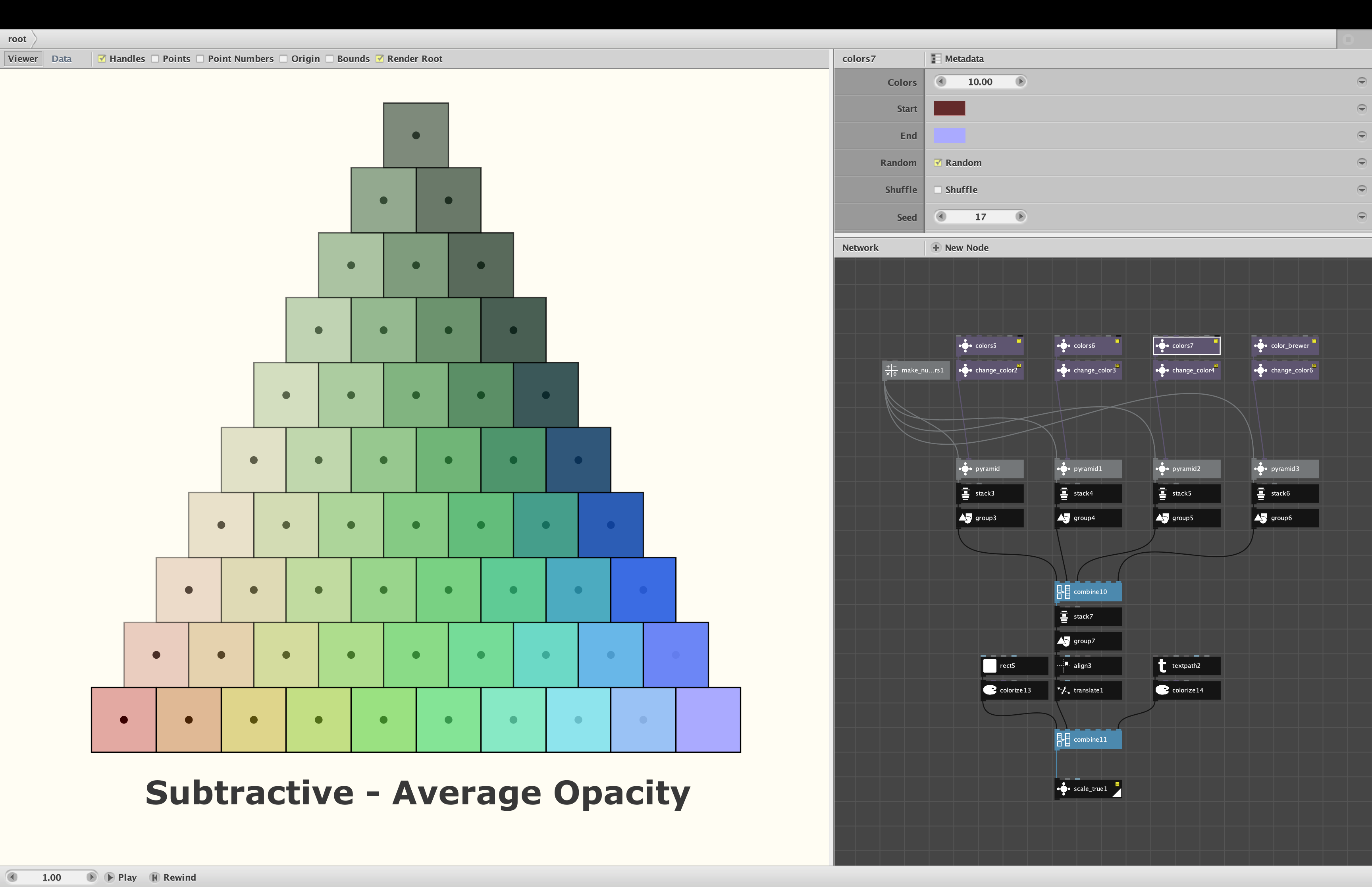
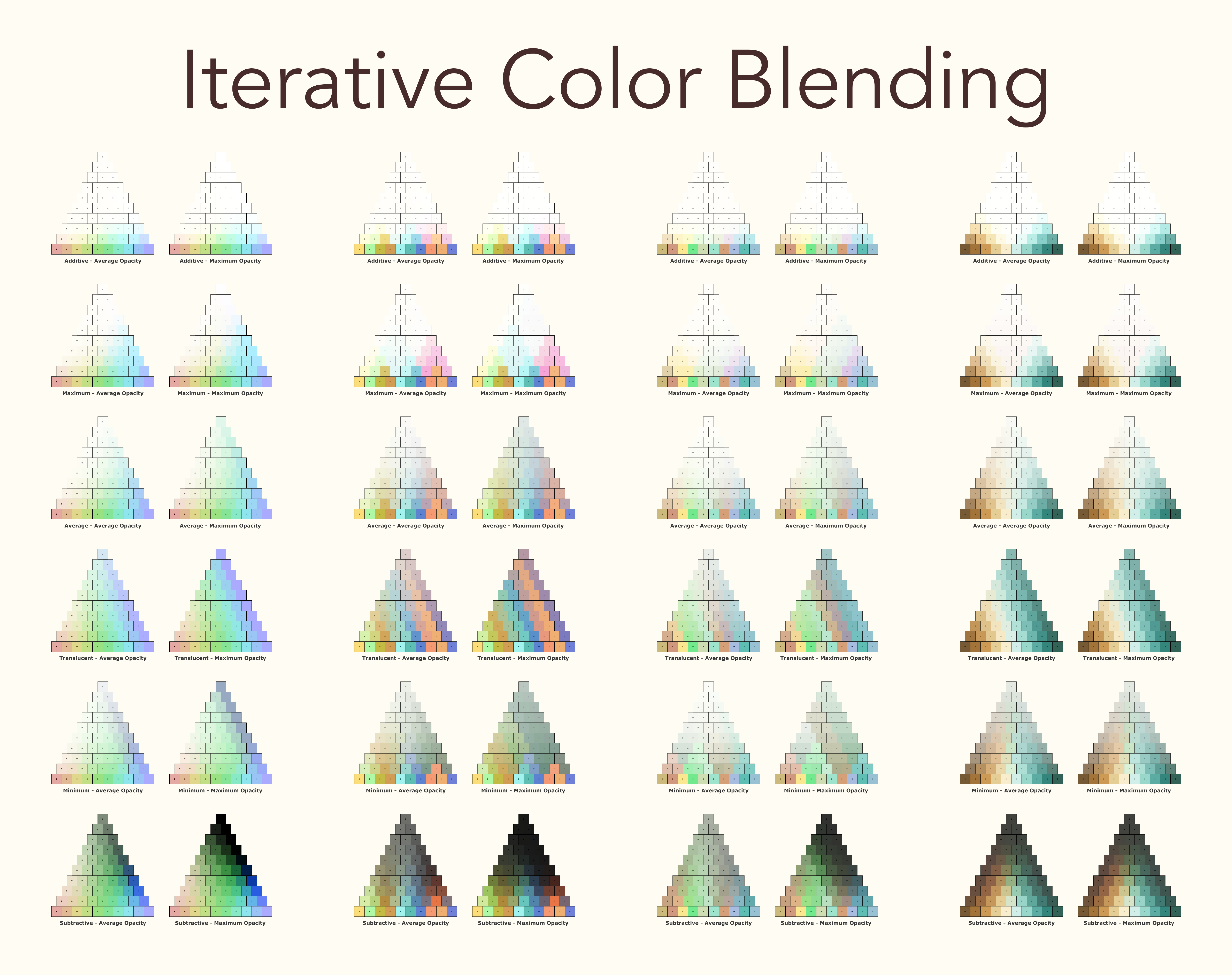
For the original translucent mode, background works just as before: it defines the background against which the translucent foreground colors are set against. For other modes, background determines how to handle translucent foregrounds. Any foreground color with an alpha less than 100% will first be turned into a solid color by applying translucent blending against the background; that solid result will then be fed into the chosen blending algorithm. I usually leave background white; darkening it will decrease the overall brightness of the resulting blend.
You can feed in a list with as many foreground colors as you wish. For Translucent mode, the order will matter: the first color will sit atop the background and subsequent colors will sit above with the final color on top. Any opaque color in the stack will conceal colors beneath. All the other blending modes are communitive - order doesn't matter.
There are now six possible blending modes:
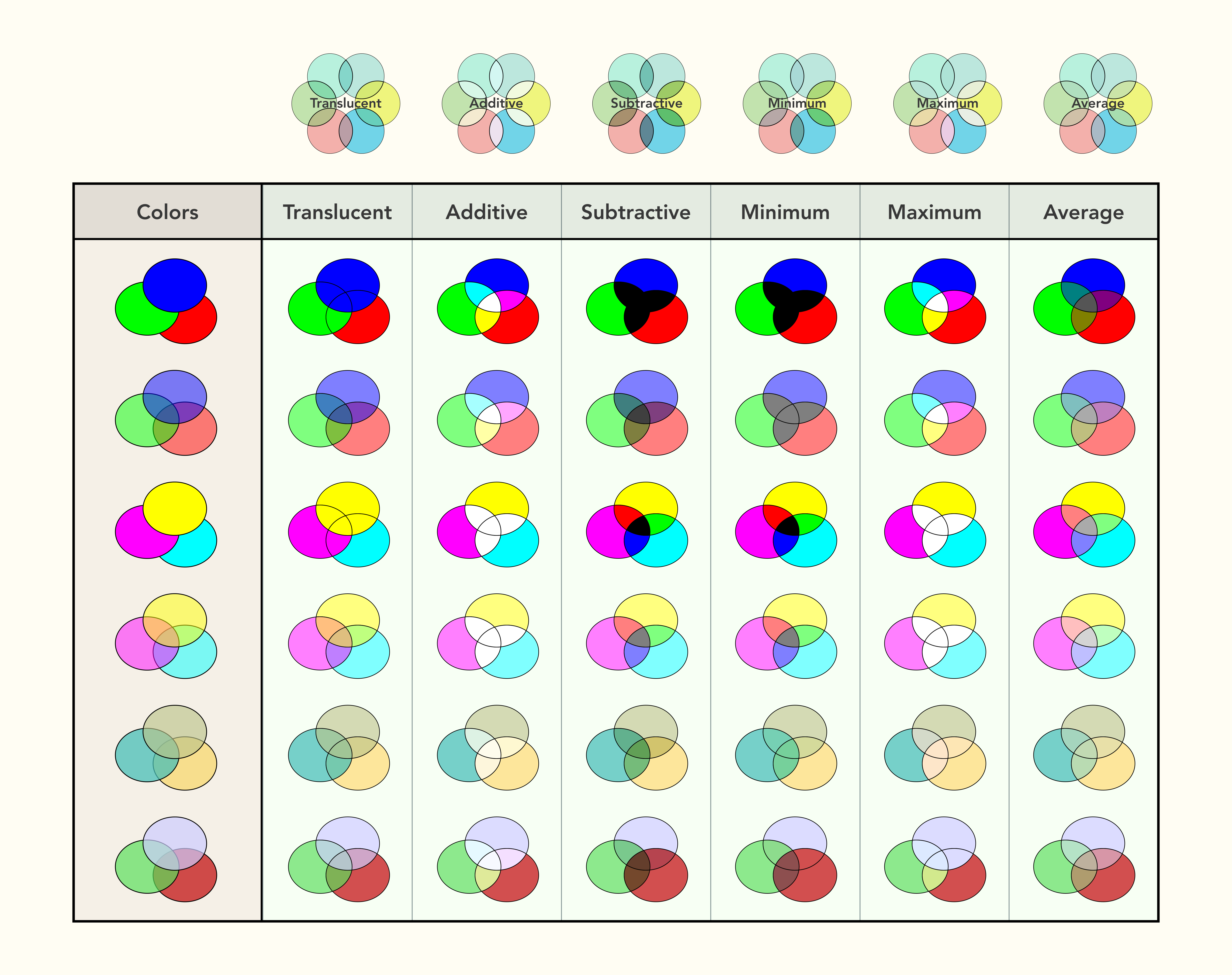
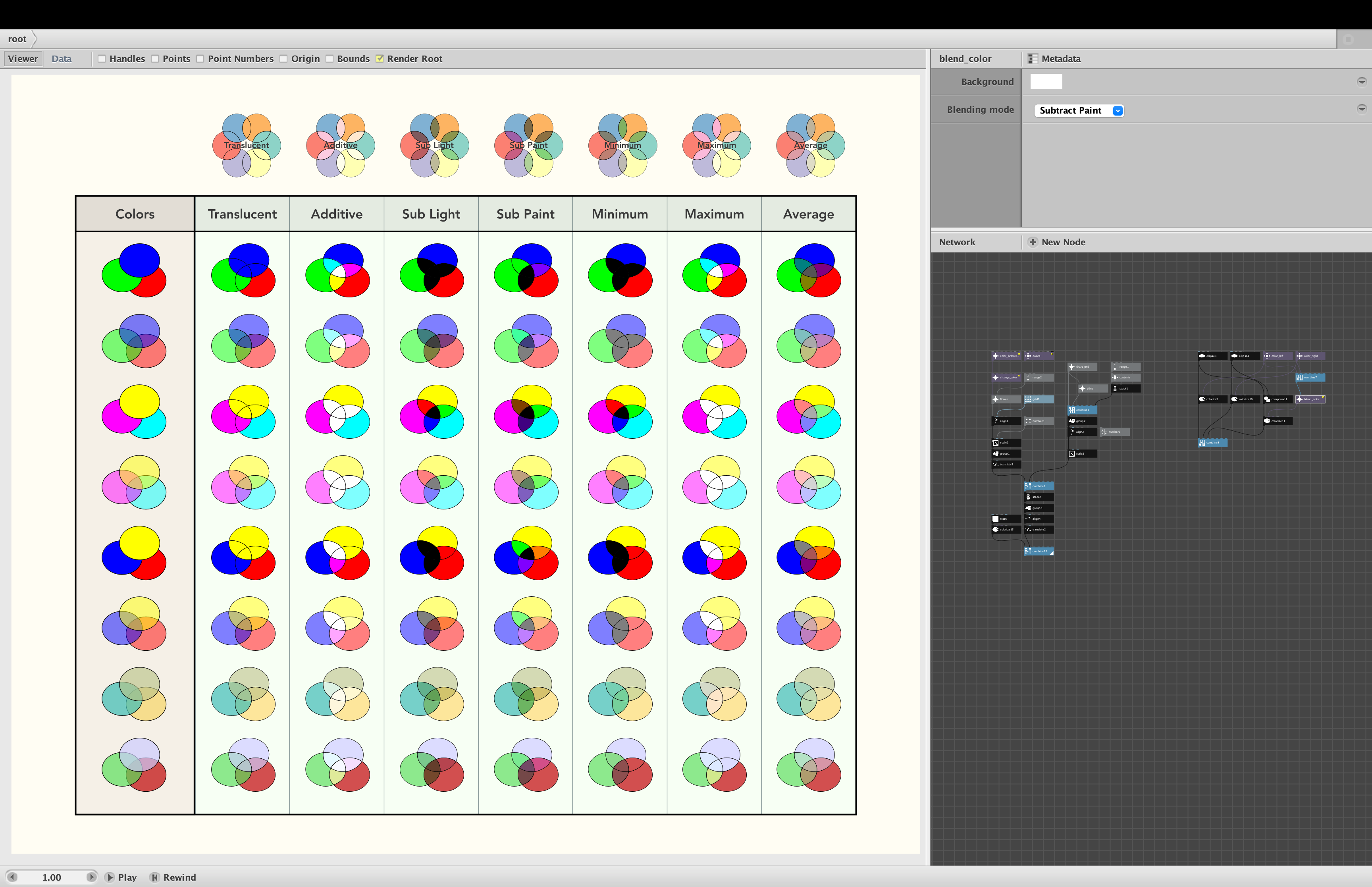
- Translucent. Works the same as before but allows multiple foreground colors
- Additive. Behaves like additive light: the more colors you add, the brighter it gets. Pure blue and green become cyan, blue and red become magenta, green and red become yellow. Adding more colors quickly turn pure white (depending on the hues, alpha settings, etc.). Because of its sensitivity, I apply gamma correction to this mode automatically.
- Subtractive. Behaves like subtractive paint: the more colors you add, the darker it gets. Pure yellow and magenta turn red, yellow and cyan turn green, magenta and cyan turn blue. The simple mathematics of this mode are not intended to simulate actual paint mixing, but can provide a rough approximation.
- Minimum. This mode returns the minimum red, green, and blue values of the foreground colors. The result is usually similar to subtractive blending, but can be different depending on the colors provided.
- Maximum. This mode returns the maximum red, green, and blue values of the foreground colors. The result is usually similar to additive blending, but can be different depending on the colors provided.
- Average. This mode returns the average red, green, and blue values. The result is often useful: an interesting alternative to normal translucent blending. If the foreground colors are balanced it may tend to gray if enough colors are supplied.
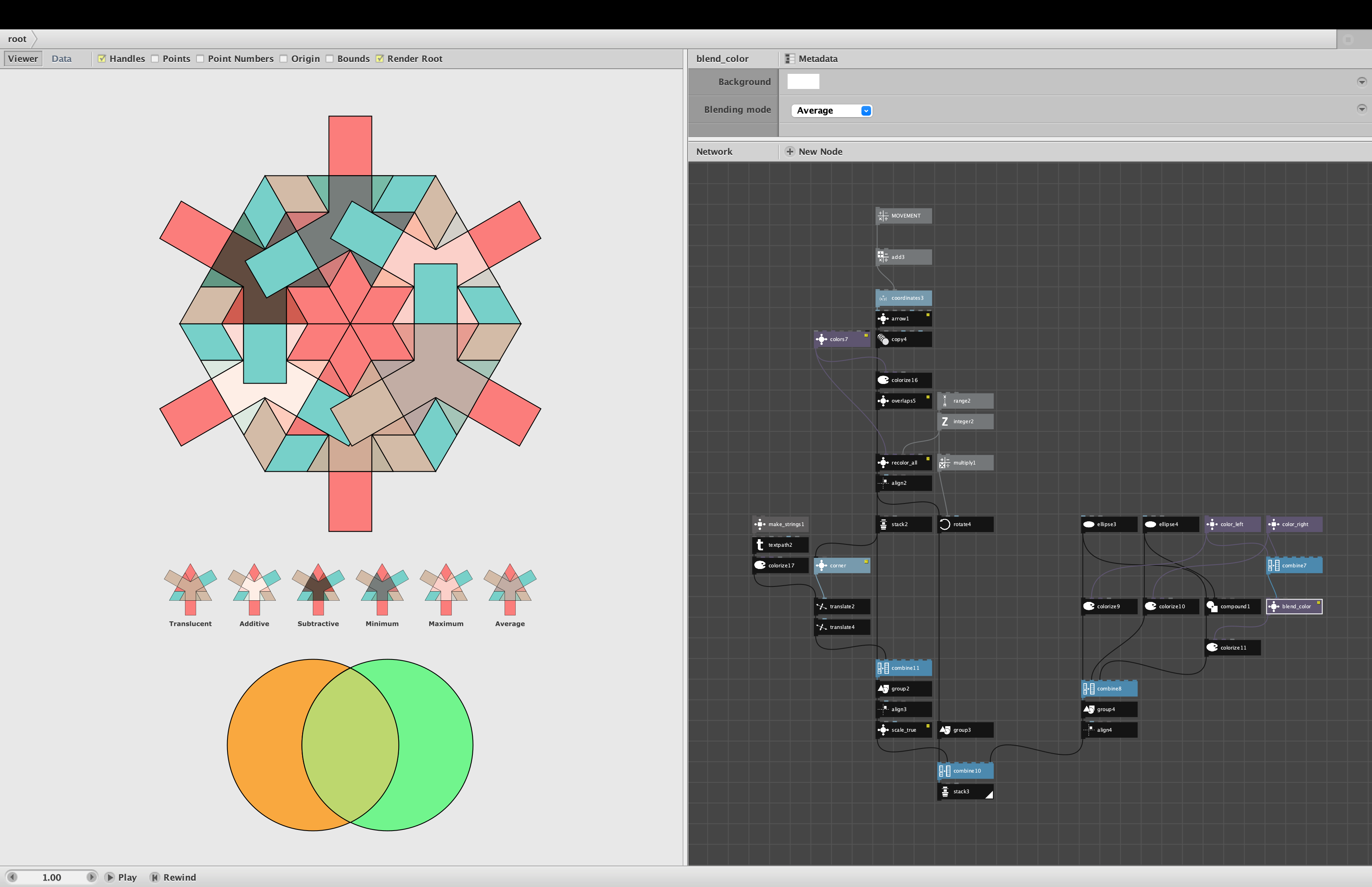
The attached demo shows two interesting applications of the blend_color node.
The simple overlapping orange and green circles on the bottom are controlled by an equally simple network on the right. I use a compound node to find the intersecting region, then use the blend_color node to combine the orange and green colors. Change the blending mode on the blend_color node to see what happens to the overlapping area. You can also try darkening the background color in the various modes to see how that central area is affected. Notice that although the central area may look translucent, blend_color always return solid (alpha 100%) colors.
The larger network on the left creates a more complex example. Three simple arrows, each a different color with different level of transparency, are driven into each other to form a mandala. You can see how the arrows collide by changing the value of the MOVEMENT number at the top of the network.
As the arrows collide they overlap in a variety of ways. I use my newly improved overlaps node to find all the intersections and determine which colors contribute to each one. I then feed the original three colors into a "recolor_all" node which colors those intersections according to one of the six blending modes. Instead of providing a single node, I provide all six, resulting in six different roughly triangular shapes, which I then rotate and combine to create the hexagonal star. The six individual triangular components are displayed and labeled below.
The three colors for this design resemble Navajo art from the American Southwest. But I actually chose them because they produce a noticeably different three-way blend for each of the six modes. This design is fun to animate.
ABOUT THE ALGORITHMS
I did a lot of research in preparation for making this node. I found many dozens of differing formulas for blending colors, some quite complex, and much scholarly chin scratching over which algorithms were best or which were flawed or limited. Color mixing is an enormously complex and subtle business and there are limits to how well blends in the real world can be simulated mathematically,
I finally decided to keep things simple for this node. All six modes work directly on RGB values. There are no varying color spaces and only limited gamma correction (when it seemed to have a noticeable effect). The formulas are dirt simple - which I hope makes them a little easier to understand. As with all these nodes, the best practice is just to try different settings and see what happens. At the very least you will now have many more options than you did before.
Please play with this node and report back. If anyone can make a strong case for additional blending modes, I can always add them to future versions of this node.