Wave,
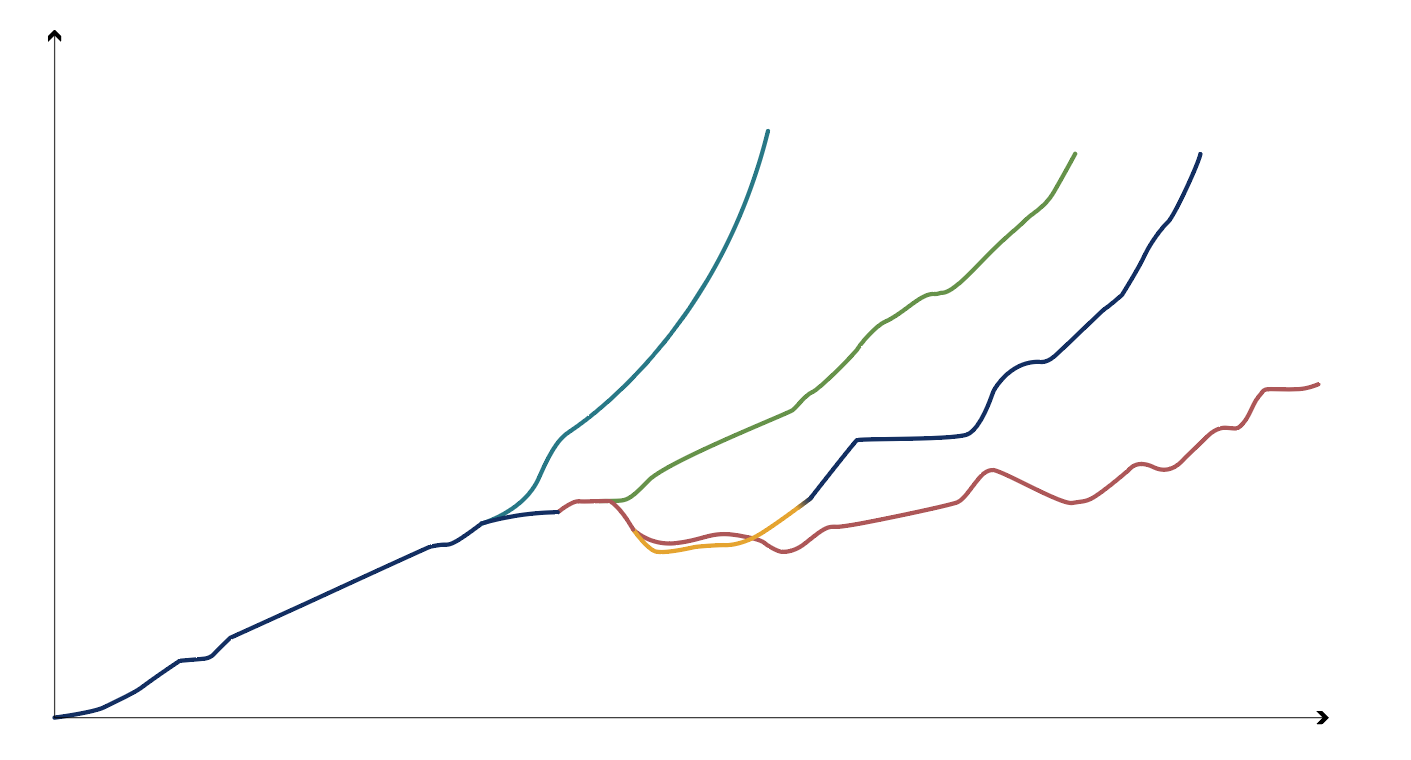
Thanks for sending your data and initial network. I made a new network (Nodebox Graph) that graphs your data with colored paths, labels, and axes. Zip file attached.
Nodebox takes a little getting used to, but once you get the hang of it you will find it's an amazing tool for data visualization. The downside is that you start from scratch with a blank canvas. The upside is that you have total control to turn numbers into shapes, colors, and text.
Plotting X,Y values from a CSV file in Nodebox is straightforward and can be done quickly. Plotting multiple paths in different colors, adding and placing labels, and constructing accurate X and Y axes takes a little more work and experience. In my demo I included both a quick and dirty X,Y plotter and a fancy network with bells and whistles.
First, two small issues with your first attempt that explain why you were having some trouble.
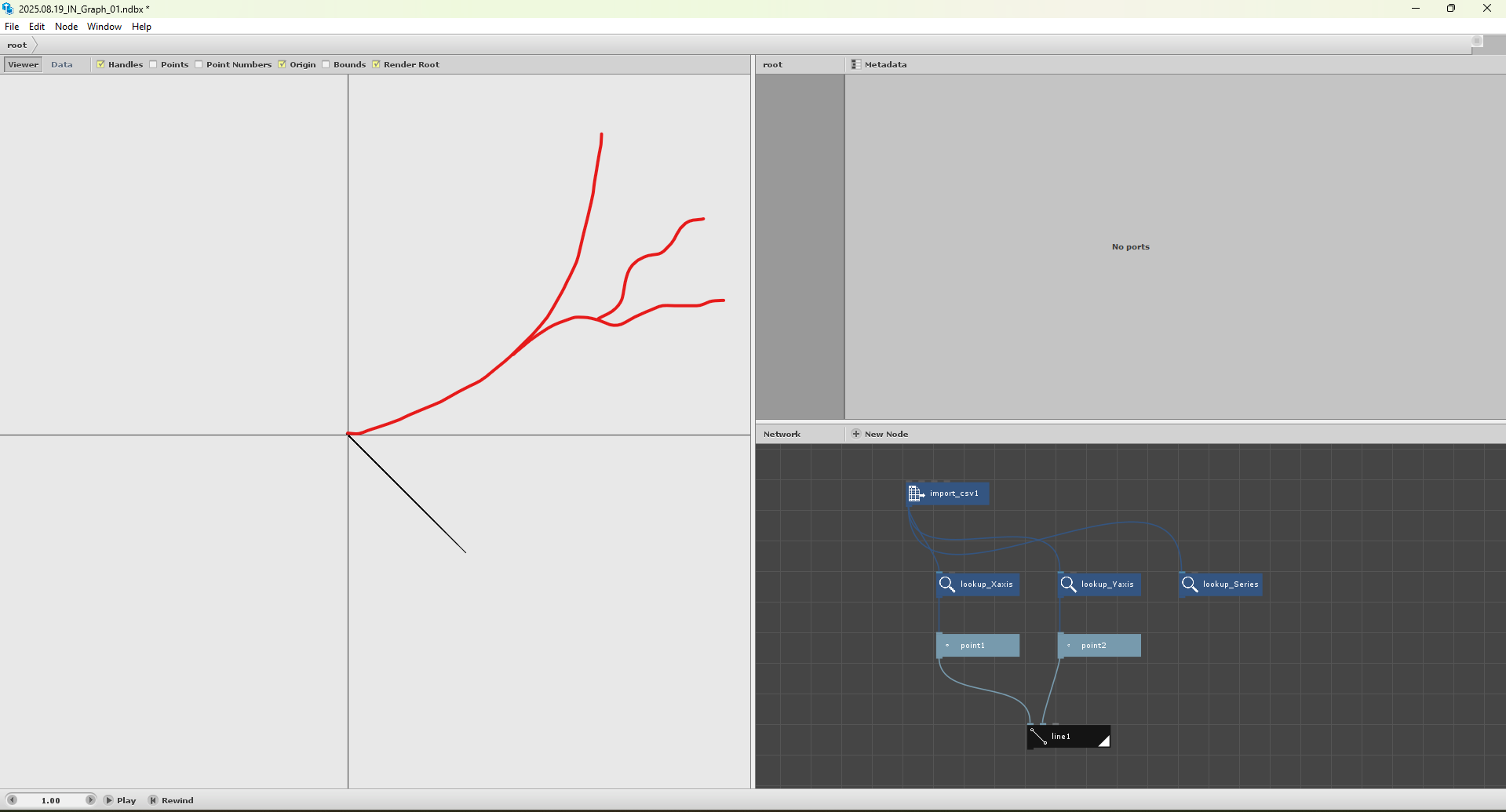
The Time and Progress values in your CSV are numbers. A point, however, is a pair of numbers (x,y). You correctly did a lookup for Time but then simply fed that into a point node. A point node needs both an X and a Y. If you only give it an X, instead of throwing an error it will just use that value for both coordinates (X,X).
So what you needed to do instead was use a make_point node, then feed Time into the X port and Progress into the Y point. That would have given you a list of points which you could then connect to form a curve.
A second issue was that your X and Y values need to be magnified to be seen more clearly. Time only runs from 0 to 20 and Progress from 0 to 10. So without magnifying these values, the entire chart would be drawn inside a 20 pixel by 10 pixel rectangle. Nodebox is pure vector, so in theory pixels don't matter, and even without magnification you could zoom way in to see your chart. But in practice you want to increase these values so that you can work with them without zooming way down all the time.
Fortunately, magnification is easy. Just multiply all your Time and Progress values by an arbitrary magnification factor. For my demo I used 20.
OK, now we can turn to my demo,
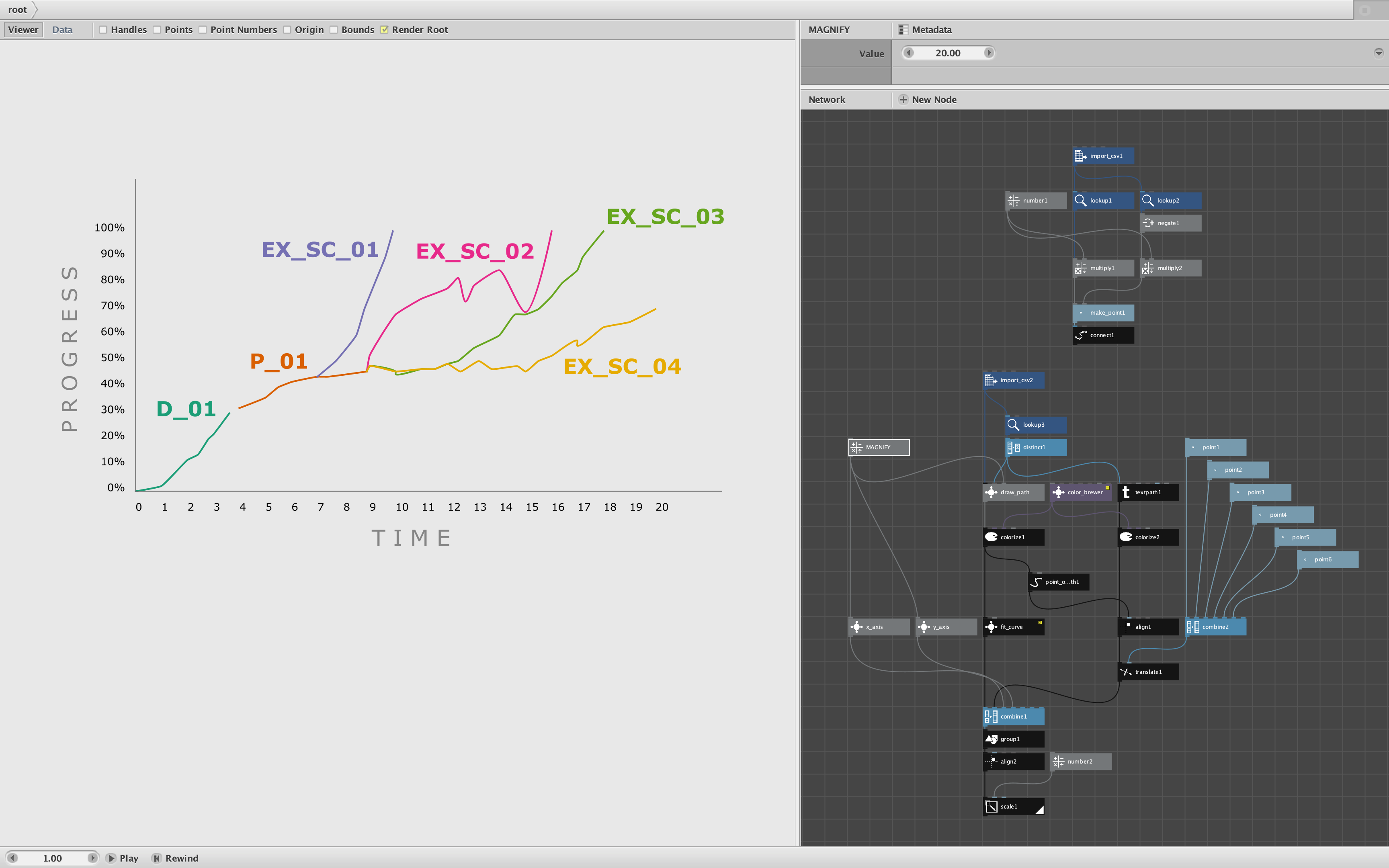
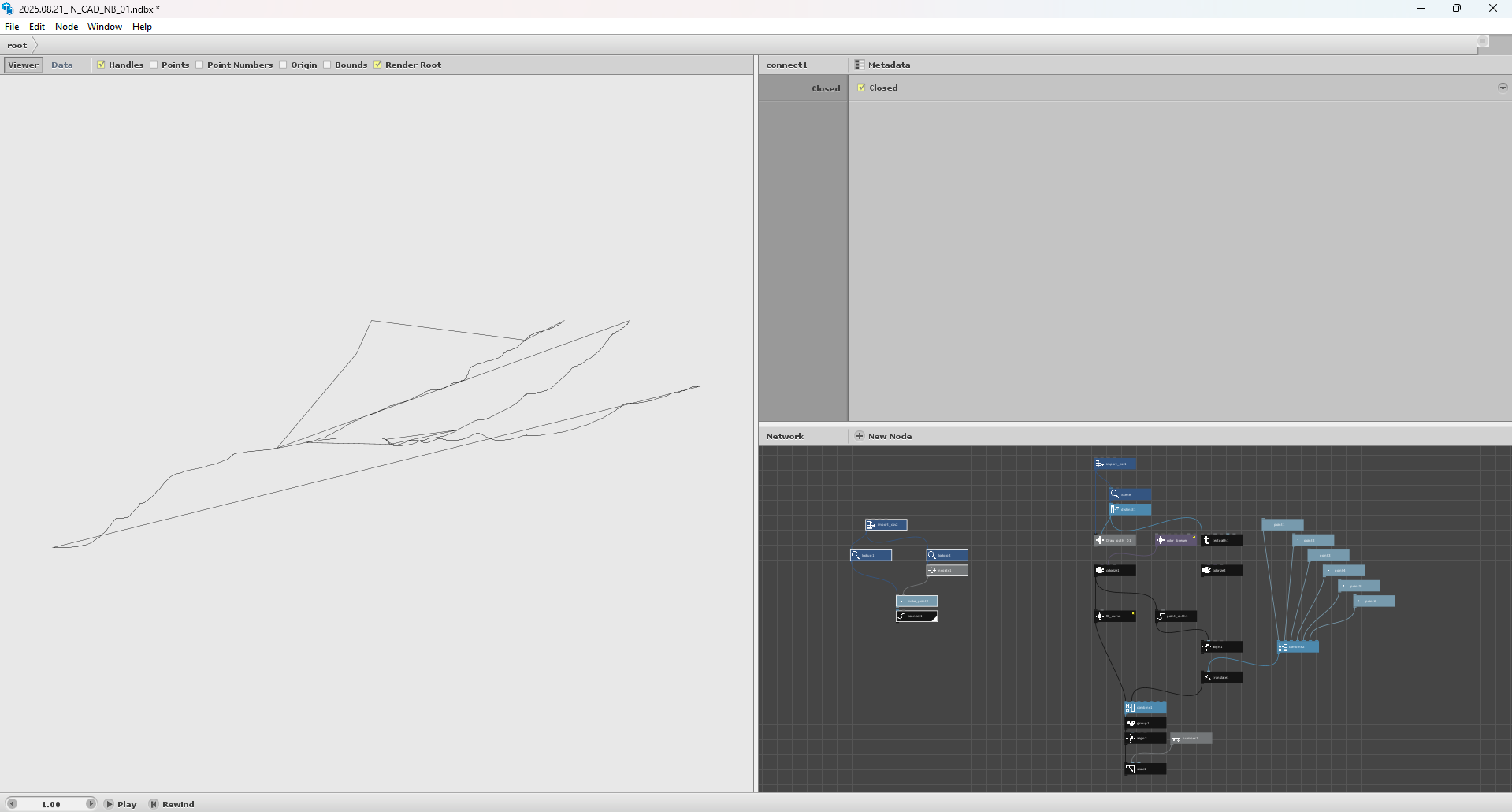
When you open it, you will see the fancy chart rendered (see screenshot). But first double-click on the connect1 node at the root of the smaller network near the top. This is the quick and dirty plot of just the X,Y values. Study this to get the hang of how Nodebox works.
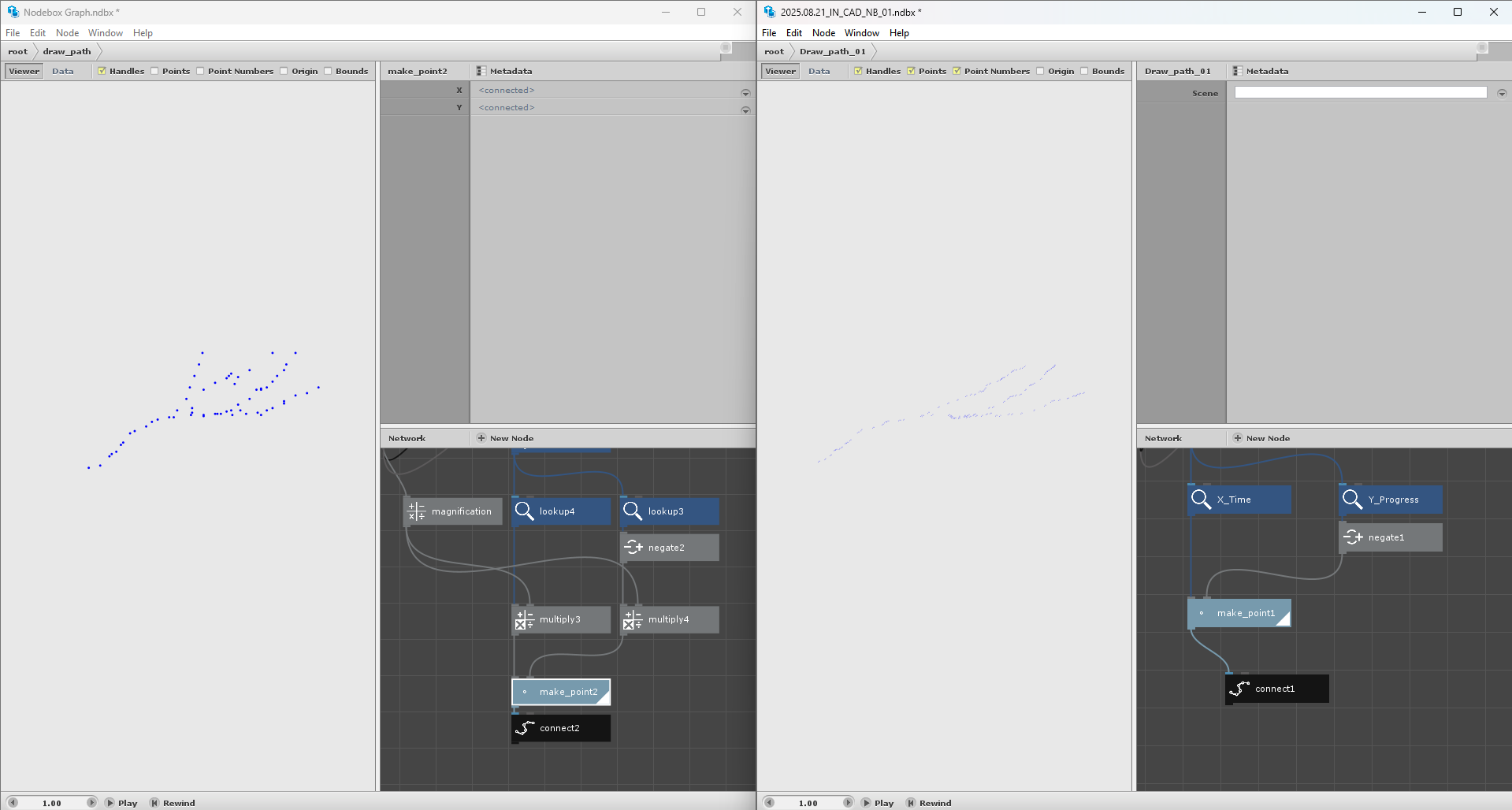
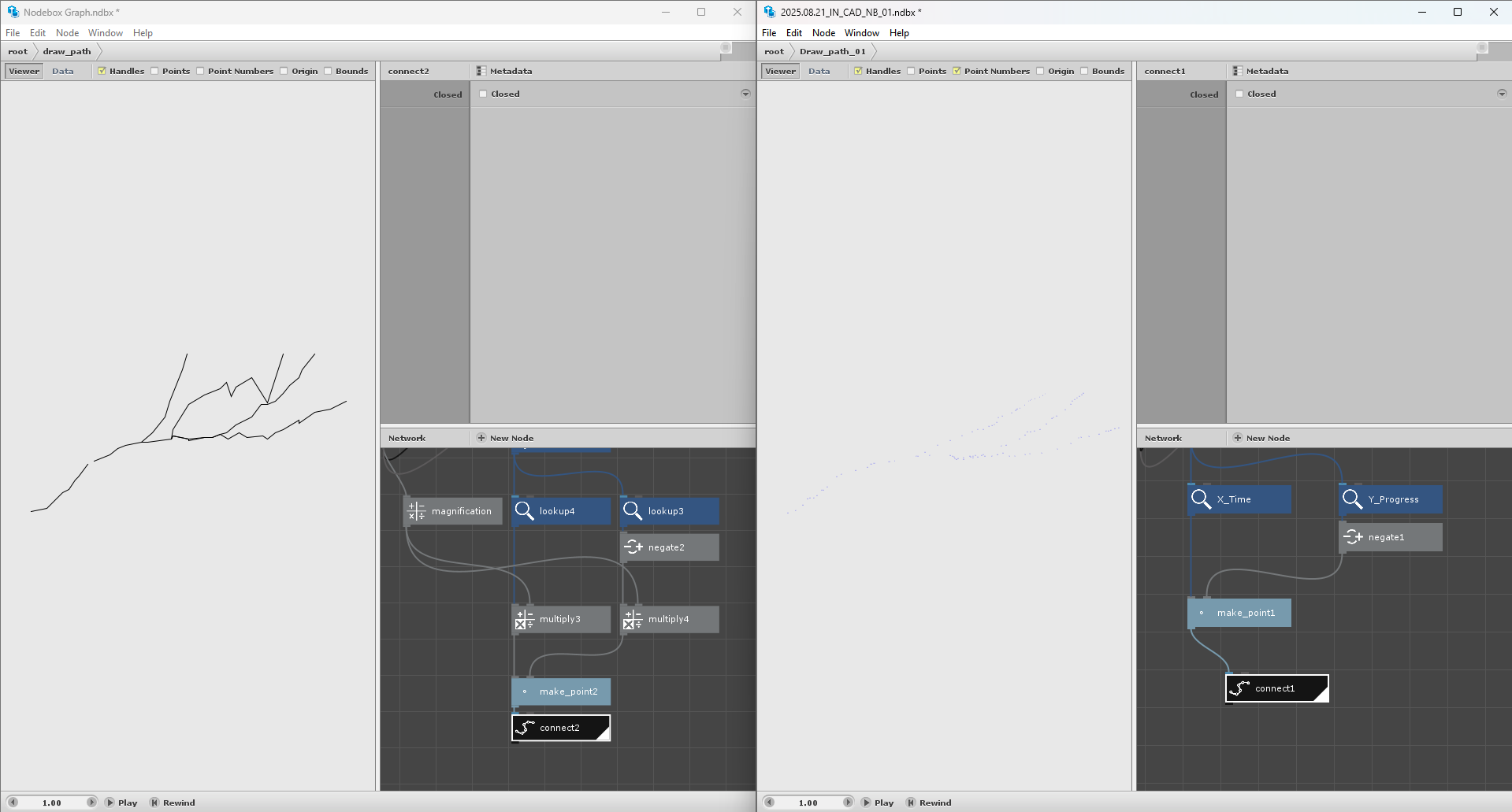
All I do here is look up Time and Progress, negate the Progress (Y) values, multiply them by a common factor (20), join the X and Y values into points using make_point, and then connect them. That's it.
Since this ignores the Scenario values that define different paths, what you get is a single path with the end of each scenario linking back to the beginning of the next. Not quite what you want, but enough to verify that you've got the correct data.
So how do we divide the scenarios into separate paths? This requires a tricky Nodebox concept called a subnetwork. I select all the nodes in my quick and dirty network on top and control-click to group them into a subnetwork which I named draw_path. I then add a filter to only draw points from one scenario at a time.
Draw_path will now function like a new node. Feed it the data from the CSV, the name of your scenario, and your magnification factor and it will draw just the path for that scenario. You can control-click on draw_path and choose "Edit Children" to open it up and see how I did the filtering. By making this into a subnetwork I can now draw one path at a time (and color them independently).
The draw_path node sucks in all the CSV data and will then fire once for each scenario you feed it. So to use it we need one more thing: a list of all the scenarios. I formed this list by doing a lookup and then a distinct node which reduces the 71 rows down to the 6 distinct scenario names. As a bonus I can also use this list for the labels.
I now feed draw_path into a colorize node to give it different colors. To do this, I need a list of 6 different colors. For this task I used a special node from my Cartan Node Library: color_brewer. Color_brewer generates lists of colors for charts using the Color Brewer system developed by Dr. Cynthia Brewer. Feel free to change the "Chosen palette" value to try out different color palettes.
I actually think it's better to leave these 6 curves as straight line segments because it clarifies the underlying data. But since you asked, I added a fit_curve node (also from my Cartan Node Library) to smooth out the curves a bit.
Making the labels is easy: just feed the list we already have into a textpath node. Placing those nodes on the graph, however, is a little trickier.
To do this I used a two-step approach. First a pulled a point near the end of each path to use as a first cut (regardless of what magnification factor you are using). Then I adjusted each of those end points manually by forming a list of adjustment vectors using 6 point nodes and a combine node. I align each label to end of its path and then use the translate node to make my individual adjustments.
All that's left now is the X and Y axes. I grouped each of these into subnetworks just to keep things tidy. Since this note is already long, I'll let you peer inside these subnetworks to see how I drew the axes.
As an added bonus I grouped the final chart, centered it (in case you want to export it as a PNG or PGF or SVG) and also scaled it up by 50% to better fill the default canvas size. I will often do a final scale at the very end of a project to get my charts to exactly the size I want. This is one of the great advantages of a pure vector tool like Nodebox.
That's it. I know this is a lot to swallow for someone just starting out. But if you study this carefully you should start to see how Nodebox works. Please play with my demo. Render different nodes to see each step of the process. Change different values (e.g the MAGNIFY factor) to see what happens when you change them.
I realize this in not a fully polished chart. I leave it to you to choose different fonts (I use Verdana because it's included with Nodebox so will work on everyone's systems), replace the Y axis marks with custom progress ranges, maybe add a legend, etc. If you have more data like this, you could also make the network more general purpose so that it would automatically adapt to different datasets.
Please let me know if this helped or if you have more questions. As you can probably tell, I love Nodebox and really enjoy using it. Thanks for giving me a fun challenge.
John