Hi Ari,
Sorry, I only now just saw your note. Thanks to Floris for jumping in.
Floris is right: since Nodebox does not natively handle images you will need my image node, plus several other nodes from my Cartan Node Library.
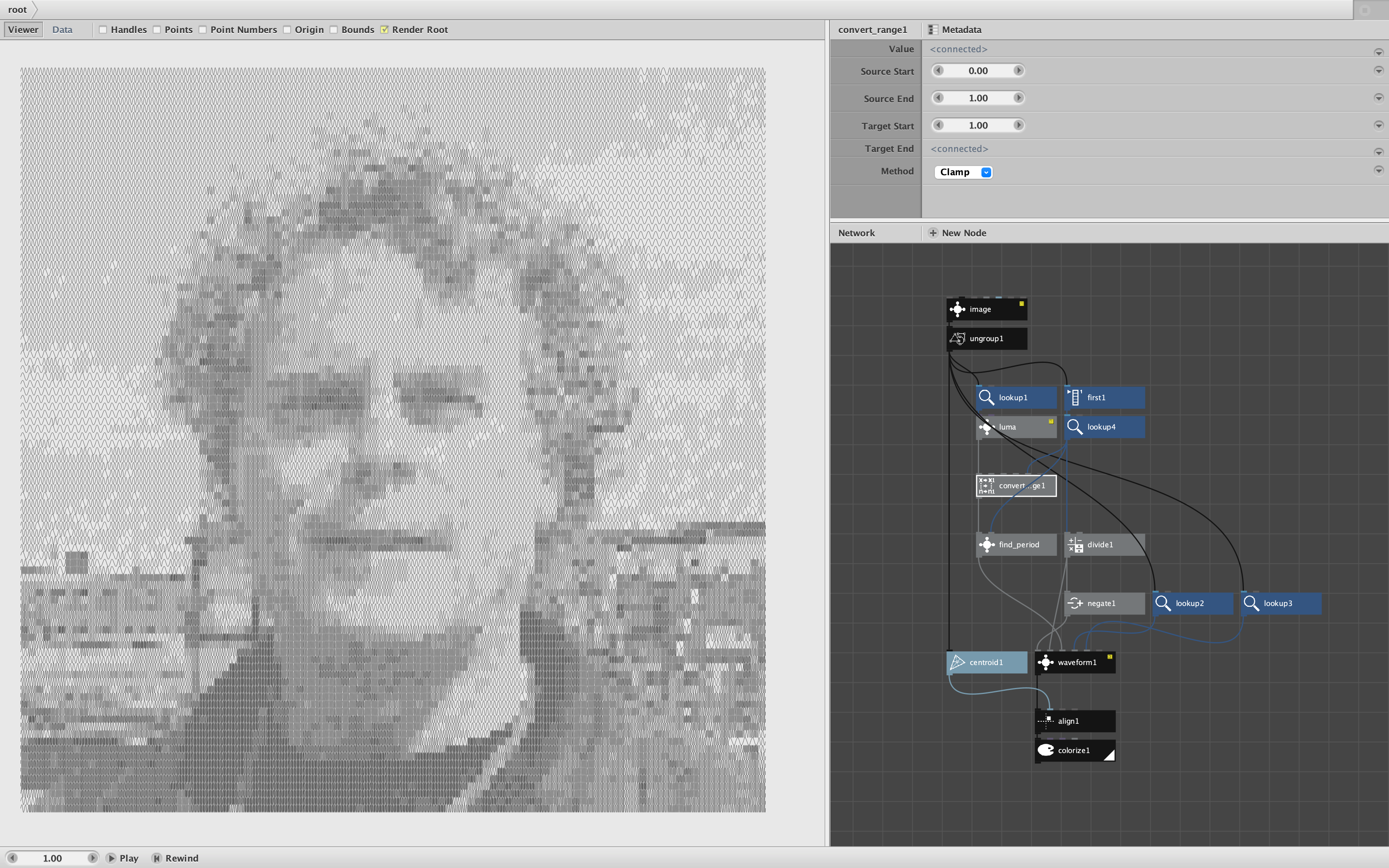
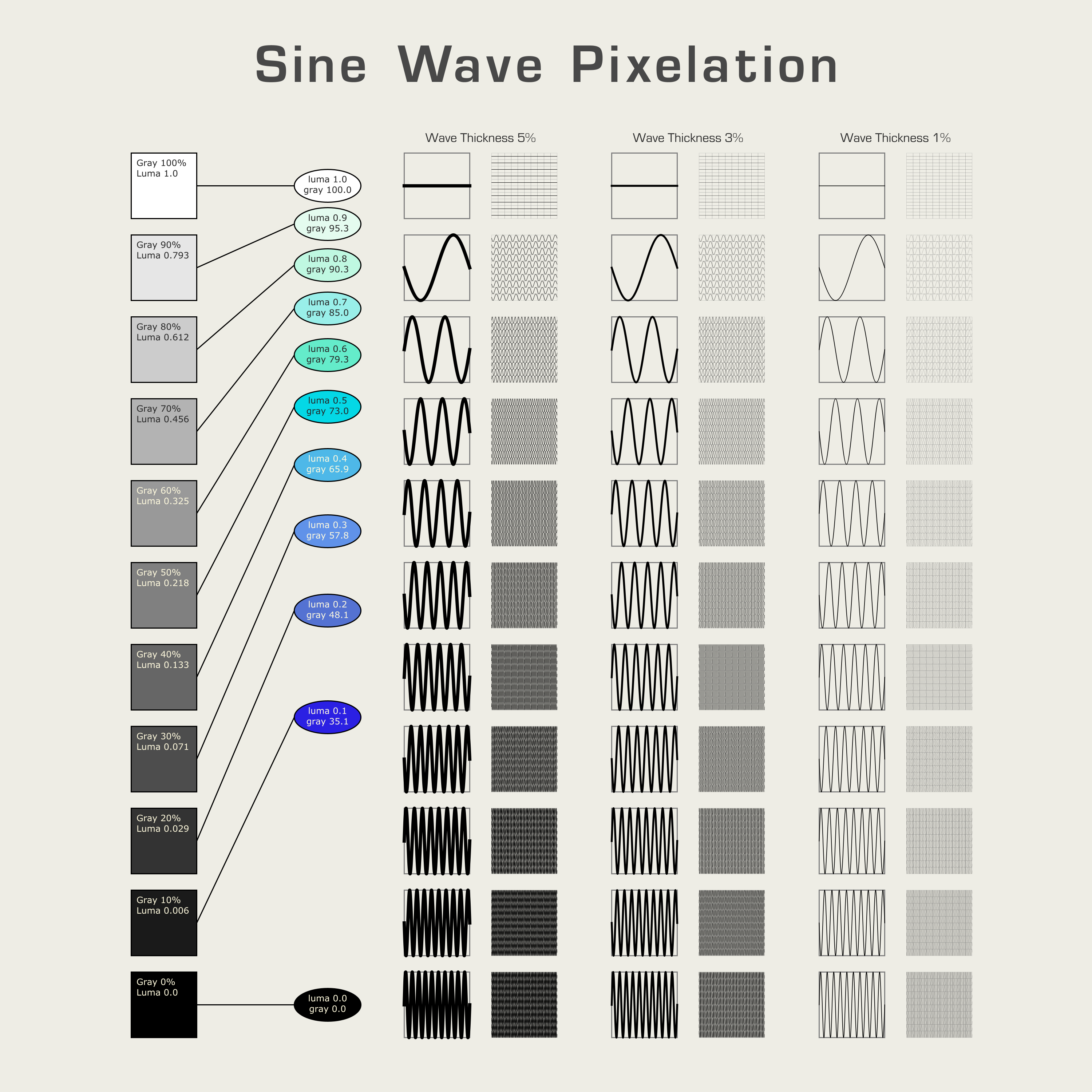
What you are asking for is fairly sophisticated for a beginner. You need some way of reading brightness (luma) values for each pixel of an image and then a way to translate each pixel to a section of a sine wave with the appropriate amplitude and period. In addition to my luma and waveform nodes, this requires a little bit of math.
If your goal was to learn Nodebox, I would be happy to help you work toward a solution step by step. But in this case I think it would be better just to make a sine wave portrait network for you and let you play with it.
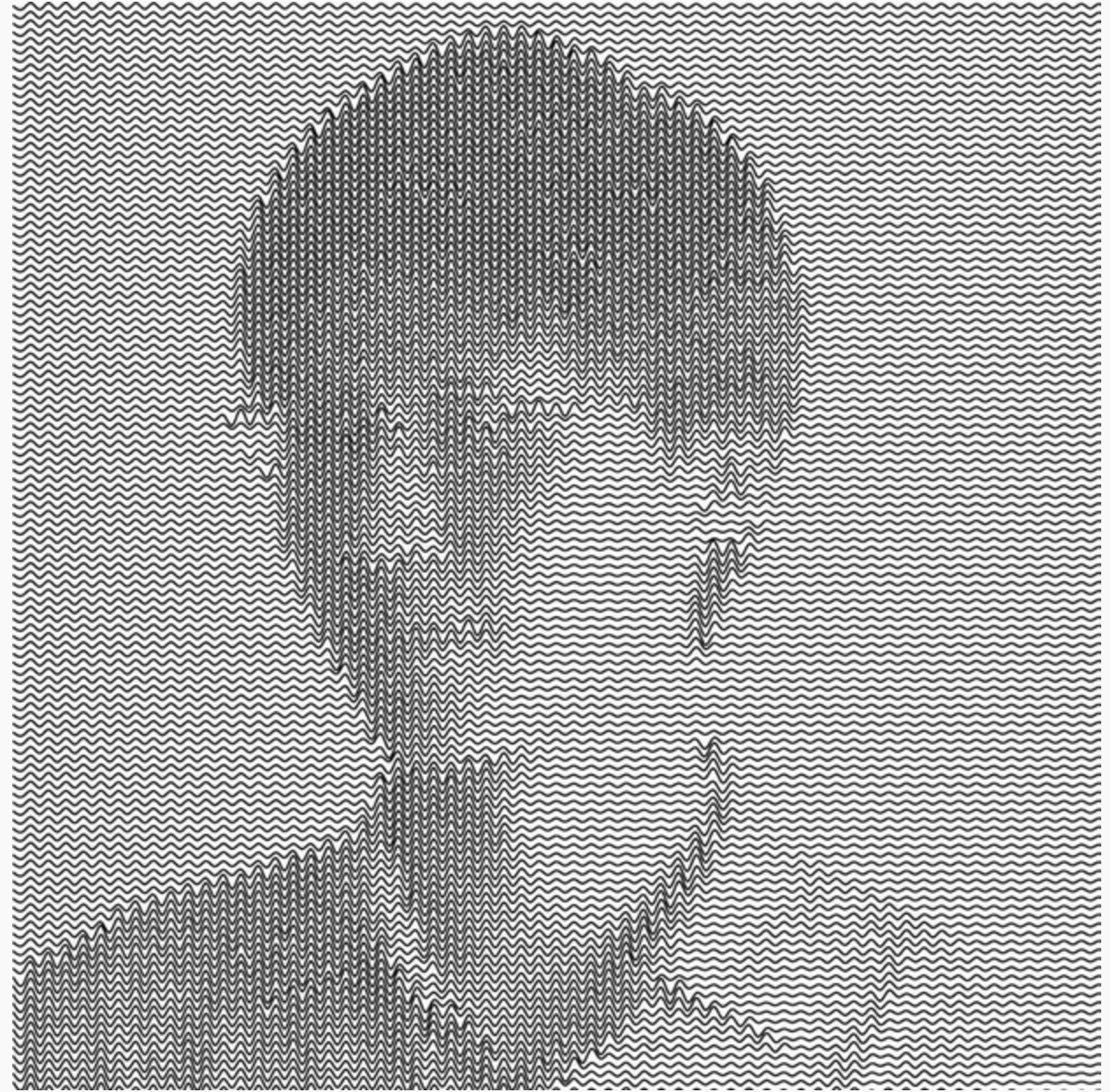
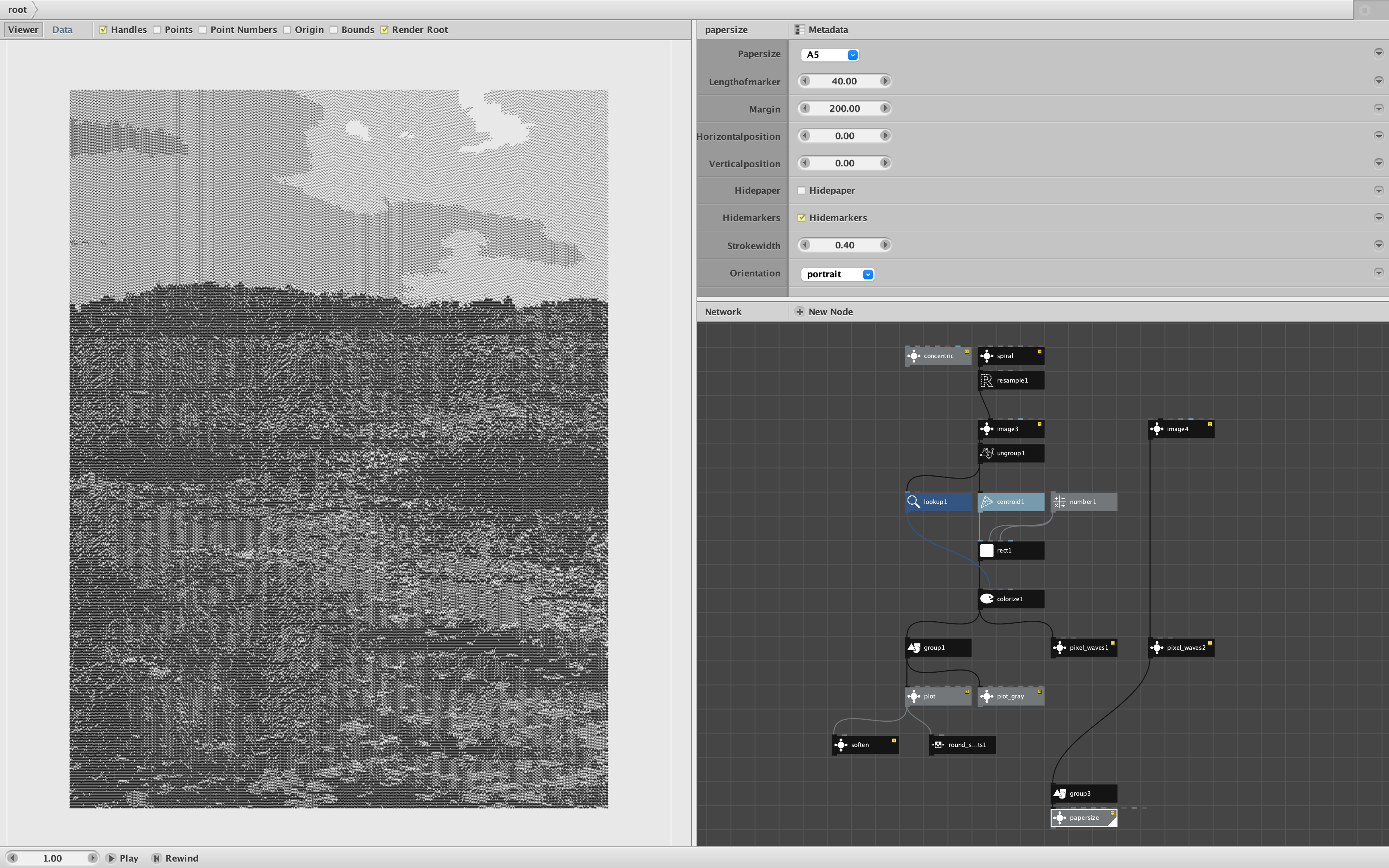
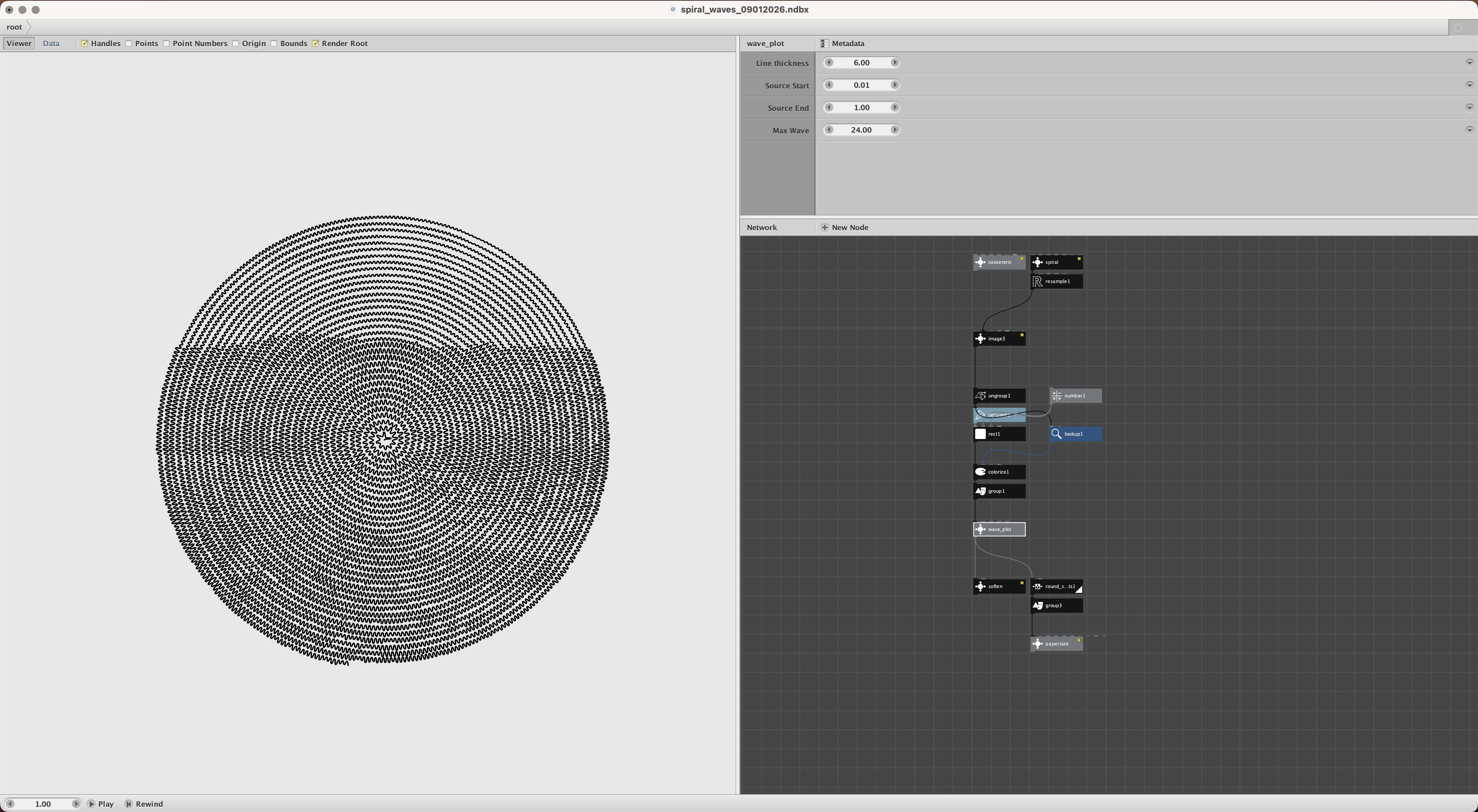
So that's what I did: screenshot and zipped demo attached.
Open the folder and launch the wavy portrait.ndbx. It may take a few seconds for the image to appear - an old snapshot of me. You can zoom in to verify that it is completely made of sine waves, scrunched up sine waves for dark spots, stretched out sine waves for light spots.
You can substitute your own photo for the one I provided. For best results there are several adjustments you need to make.
Start by rendering (double-clicking) the image node at the top. Your render time can be slow so it's important to get the image set up correctly before doing all the calculations below. Turn on the Bounds checkbox atop the Nodebox render pane so you can see the size of your canvas.
The canvas size determines the dimensions of your final product. For this demo I left it at the default size of 1000 x 1000. If you want a higher res output you will want to increase your canvas size using File / Document Properties.
You will then want to change the image scale in the image node until your image fills the canvas. For this demo I set scale to 1.25. If you want to bleed the image to the edge of the canvas you will need to scale it up until both dimensions exceed the canvas boundary,
The other key setting in the image node is Image Quality (currently set to Medium Clarity). This controls how finely grained the pixels are. The more more pixels, the more processing required. If you're going to fiddle with higher resolutions I recommend starting at the lowest setting (Fuzzy) before rendering the final node of the network so that you don't grind Nodebox to a halt. Start low res and then work your way up.
You are now ready to render the final node of the network: colorize. This node has one more setting that can significantly effect the final output: stroke width. This is the thickness of the sine waves. I currently have this set to .25. If the image is too dark you can decrease this down as low as .1. If the image is too light you can increase it.
As you increase the image quality in the image node, you will probably need to adjust the stroke width to compensate. You can also change the stroke color if you want.
That's it. It's a pretty cool effect.
One request. If you see this note, PLEASE reply and let me know you gave it a try. Better yet, if you can, please share the image you produced.
The same goes for anyone else who sees this. If you use this to make a cool wavy portrait, please share it so we all can see!
John