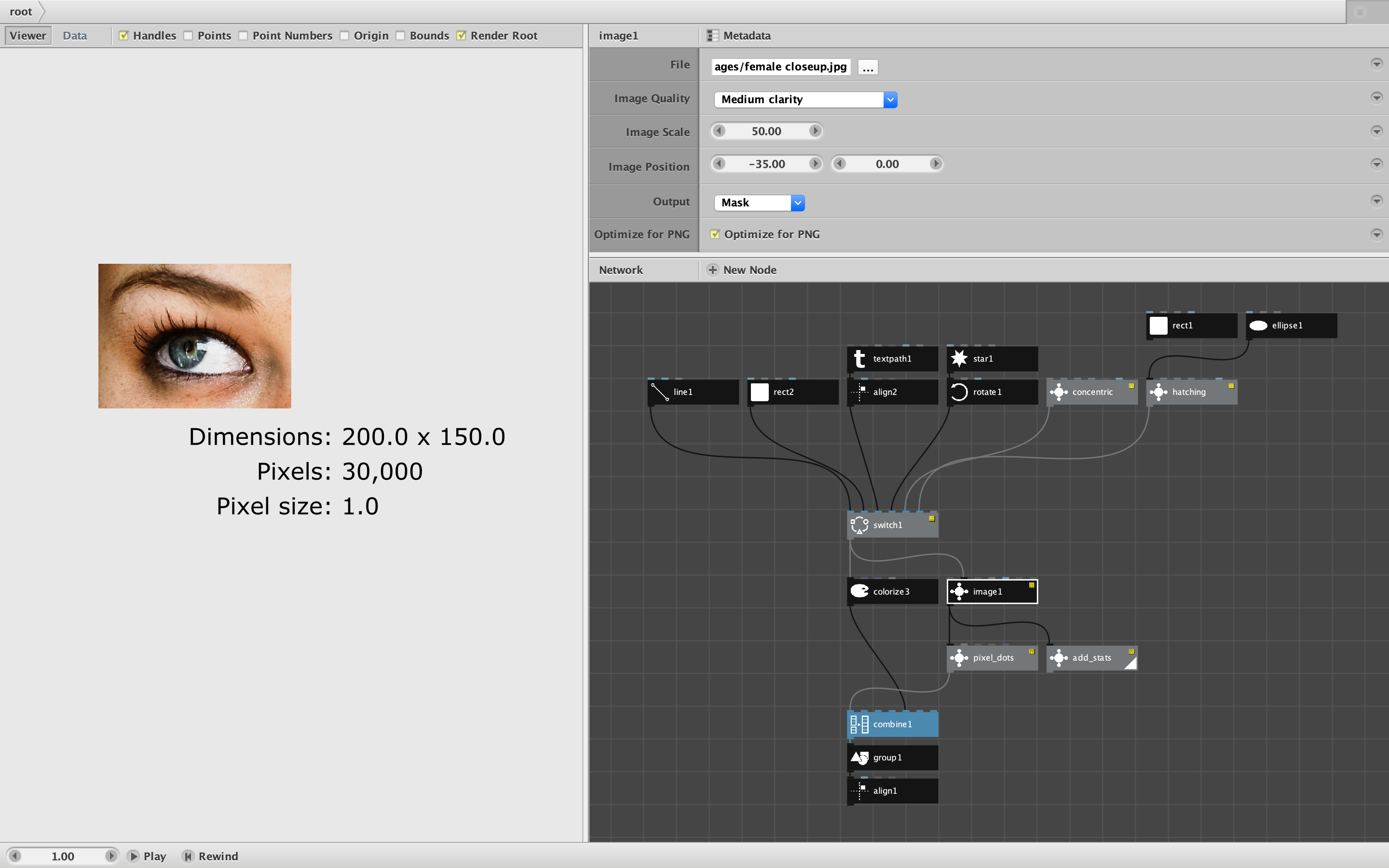
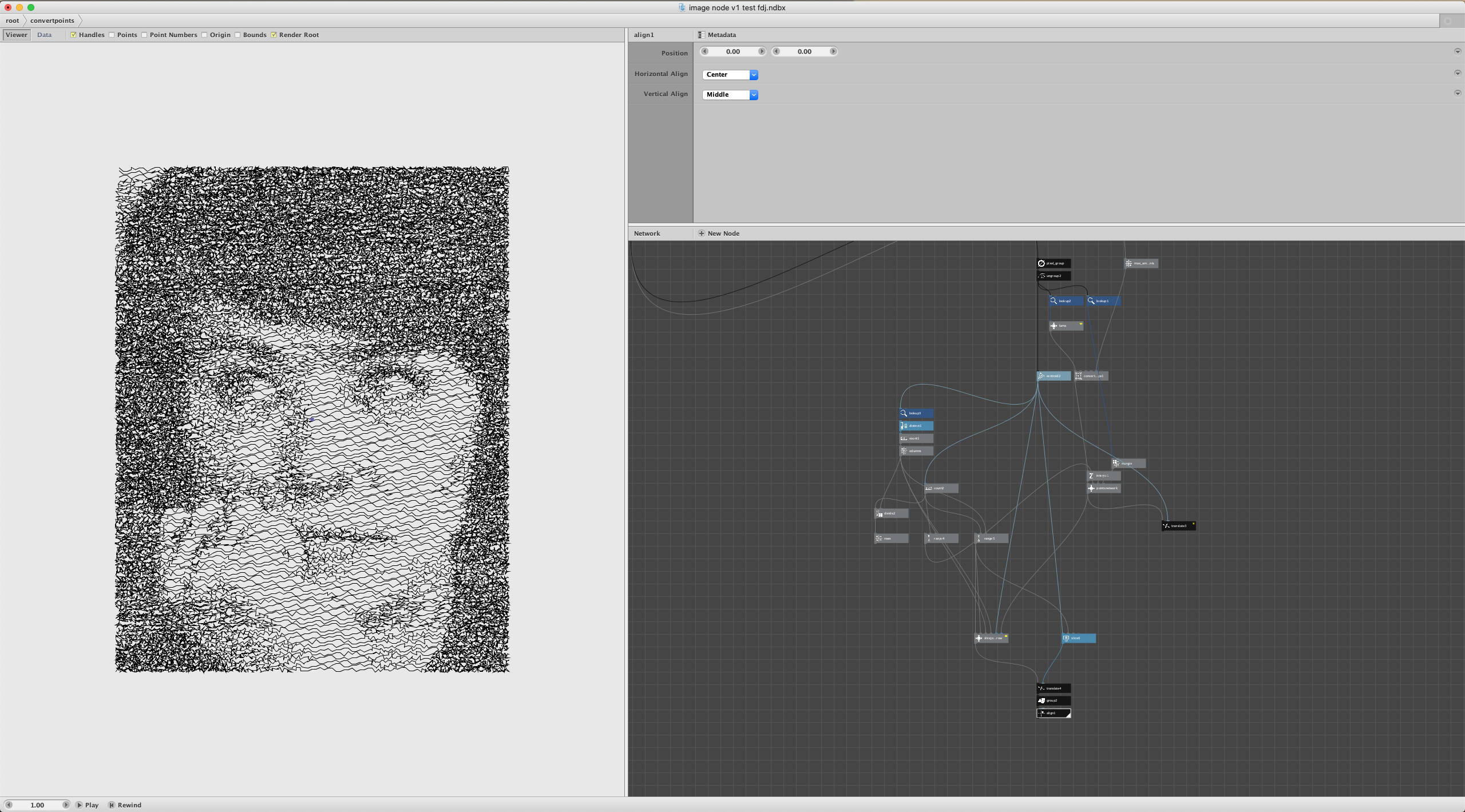
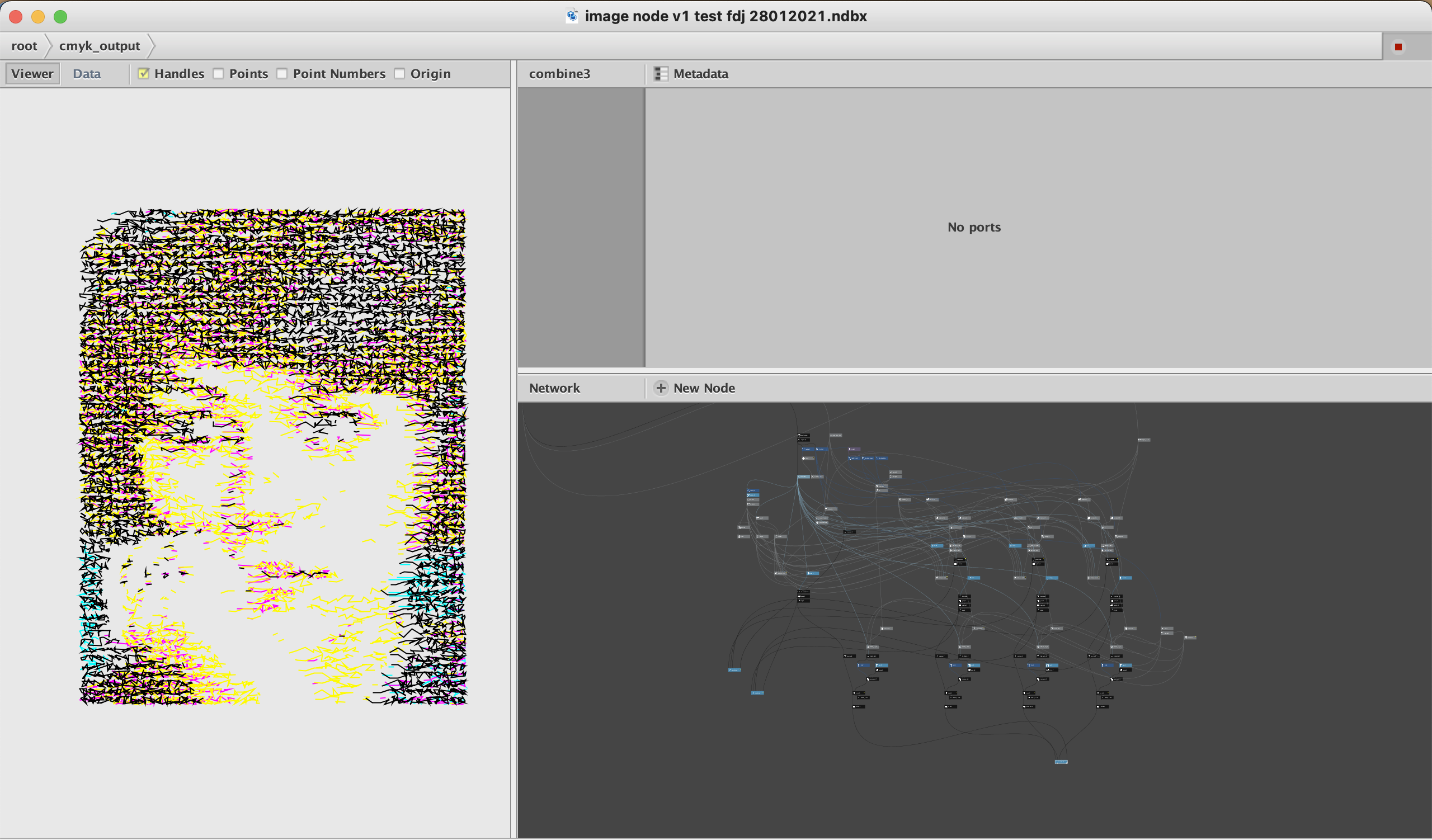
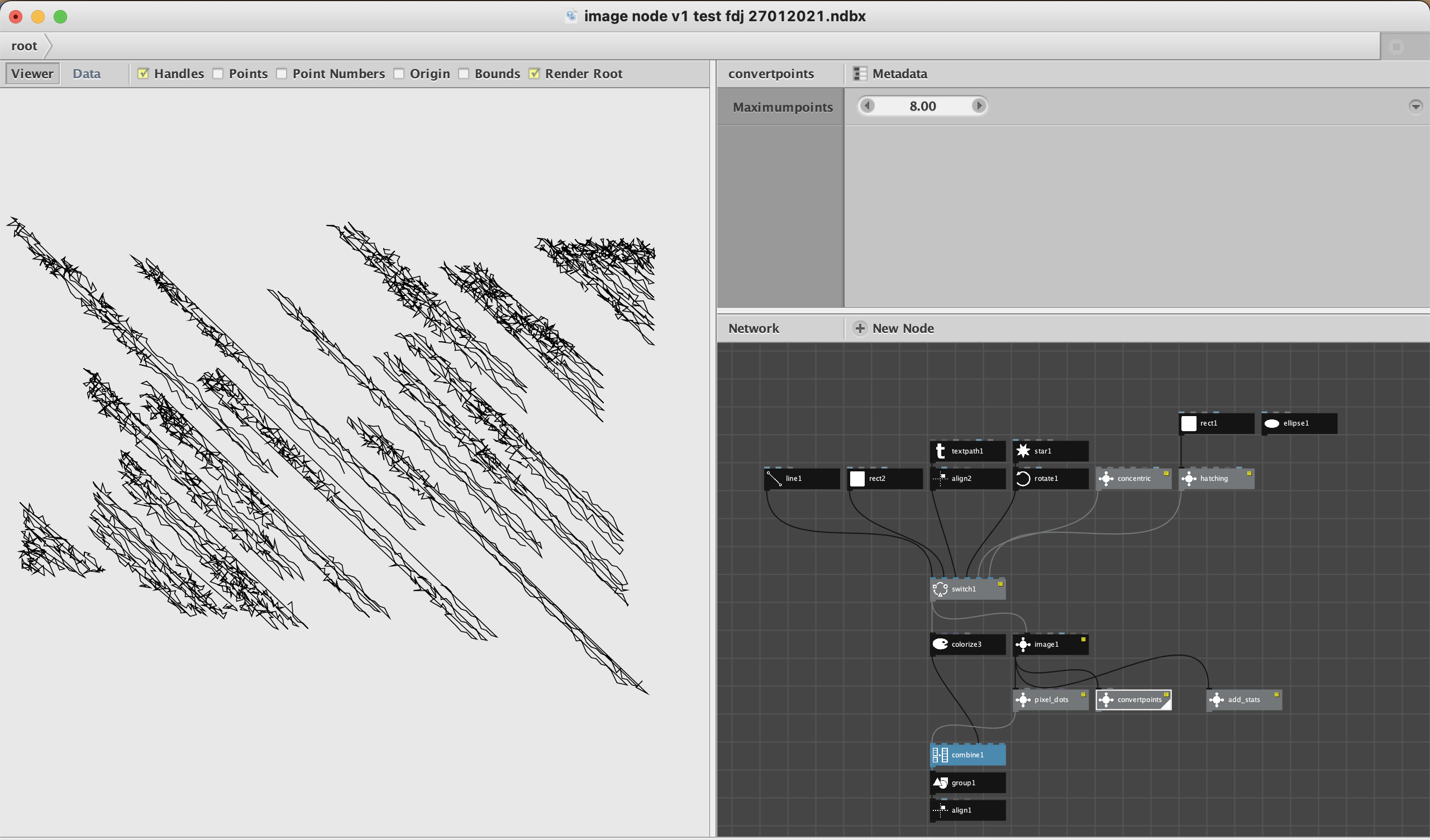
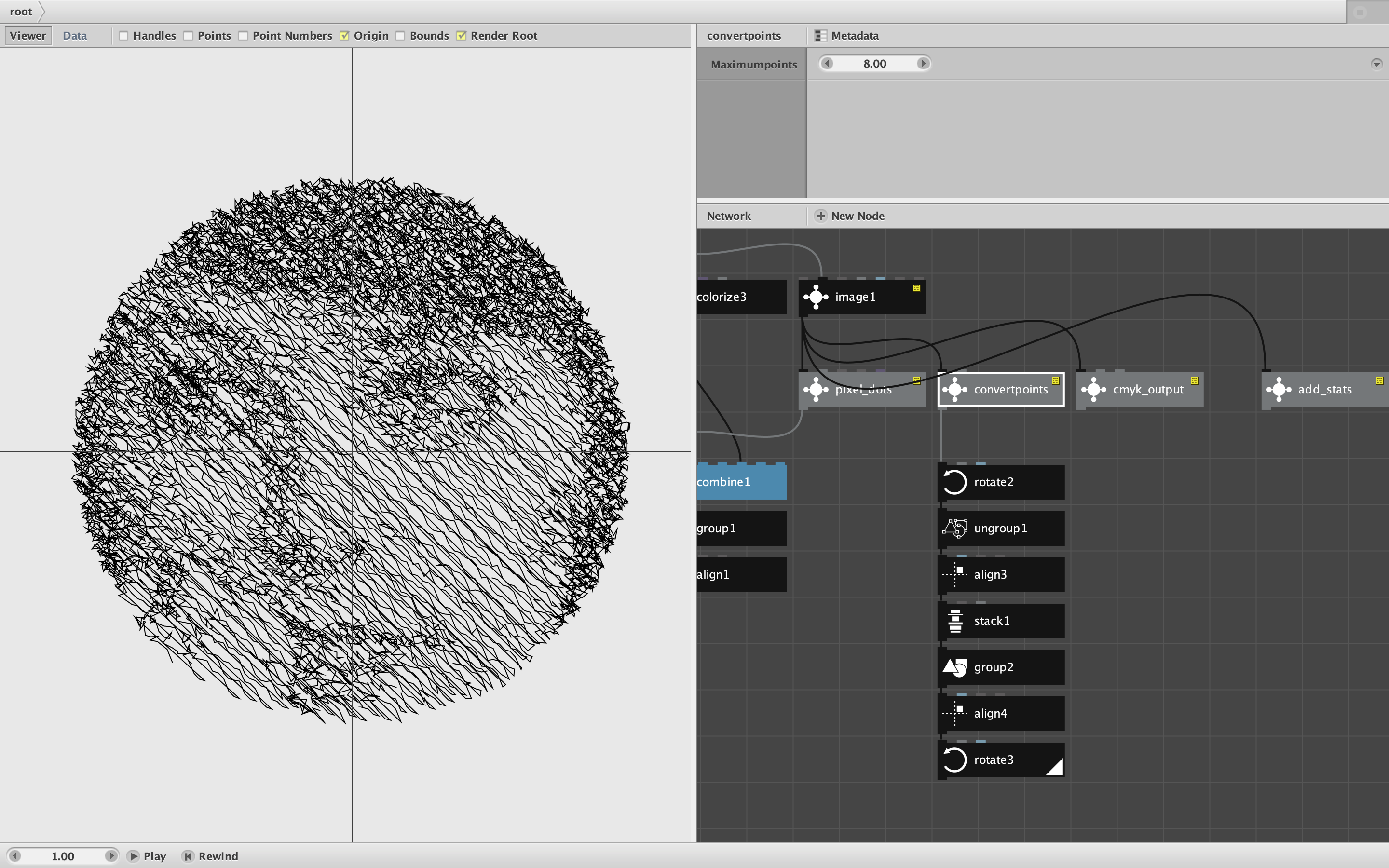
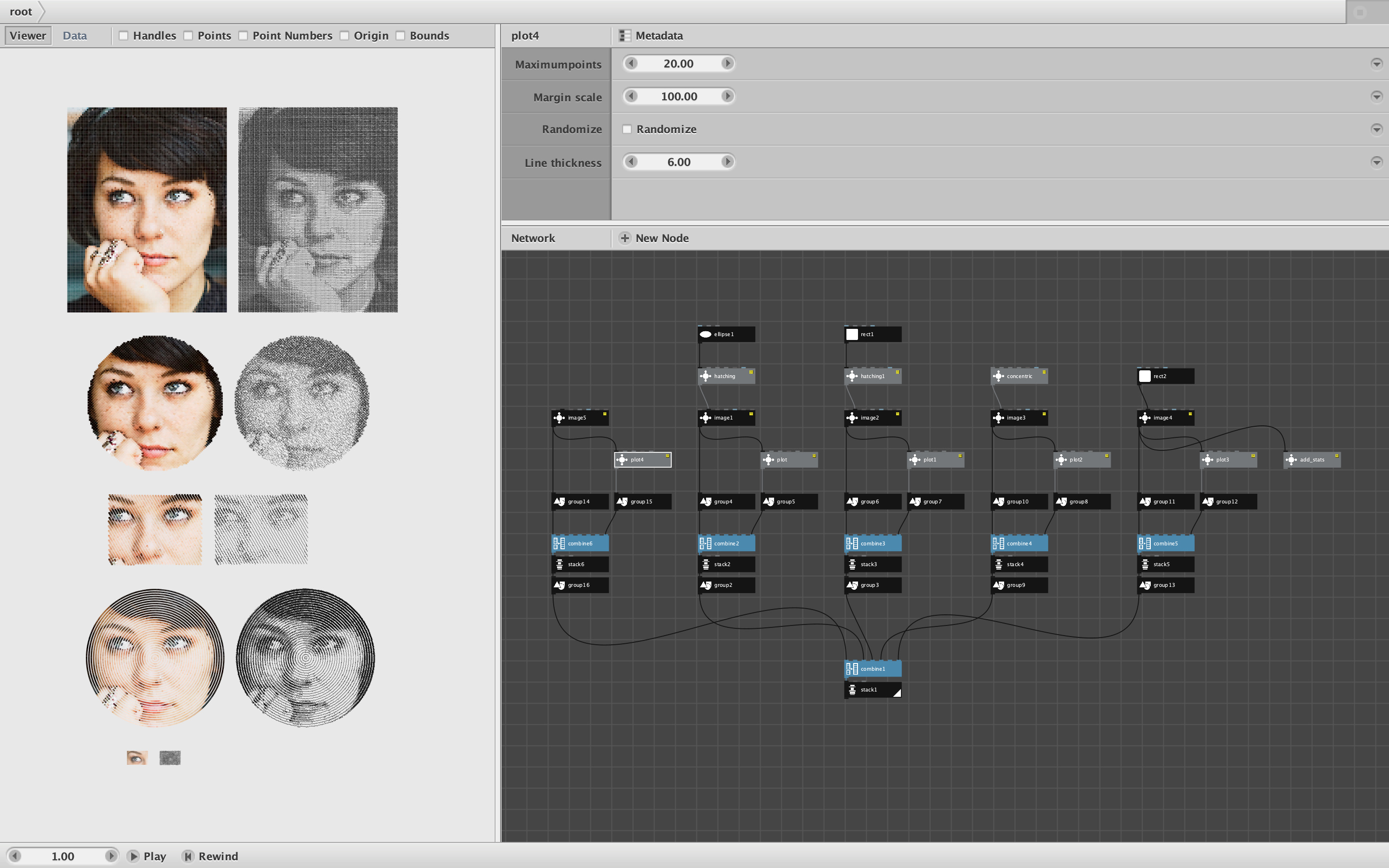
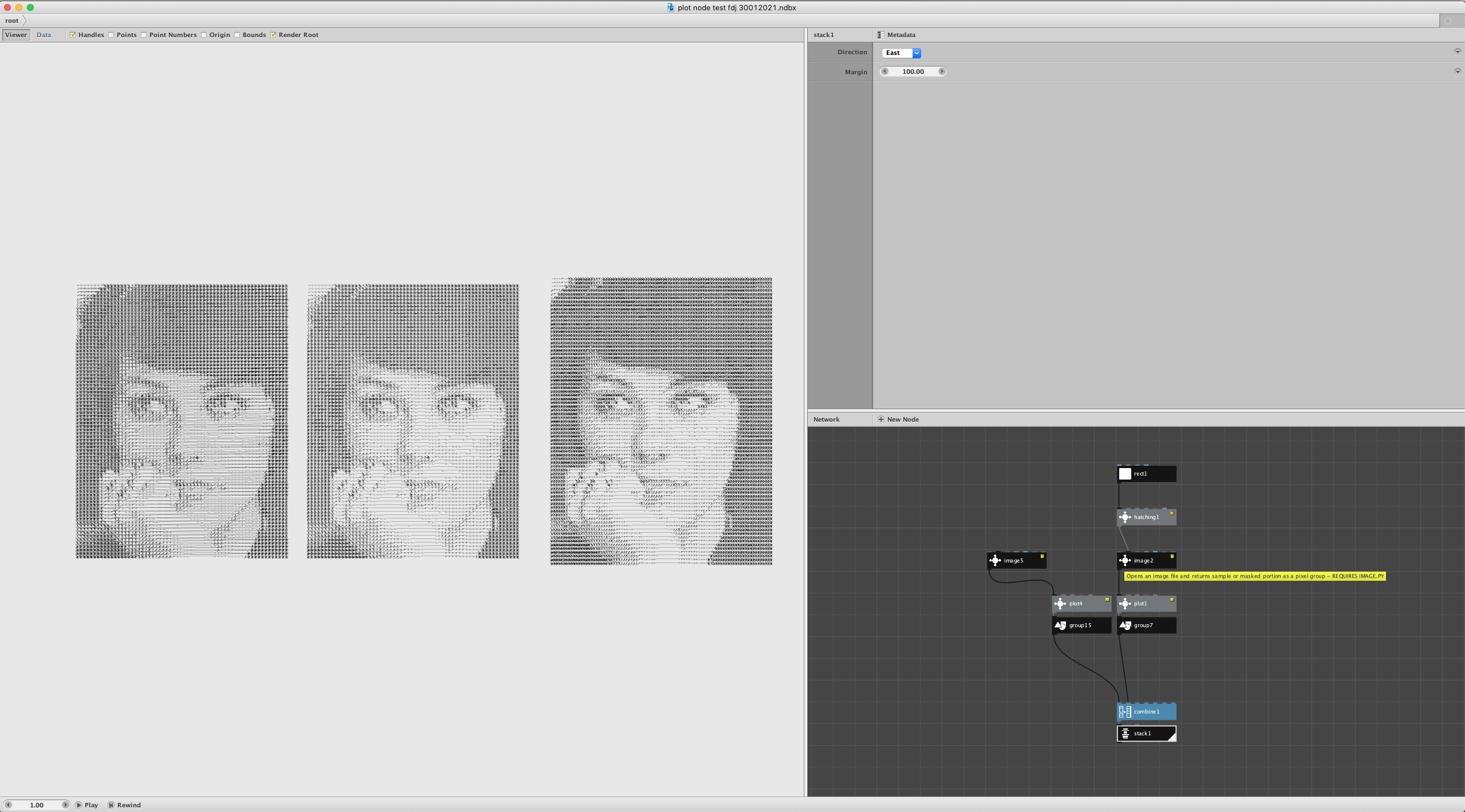
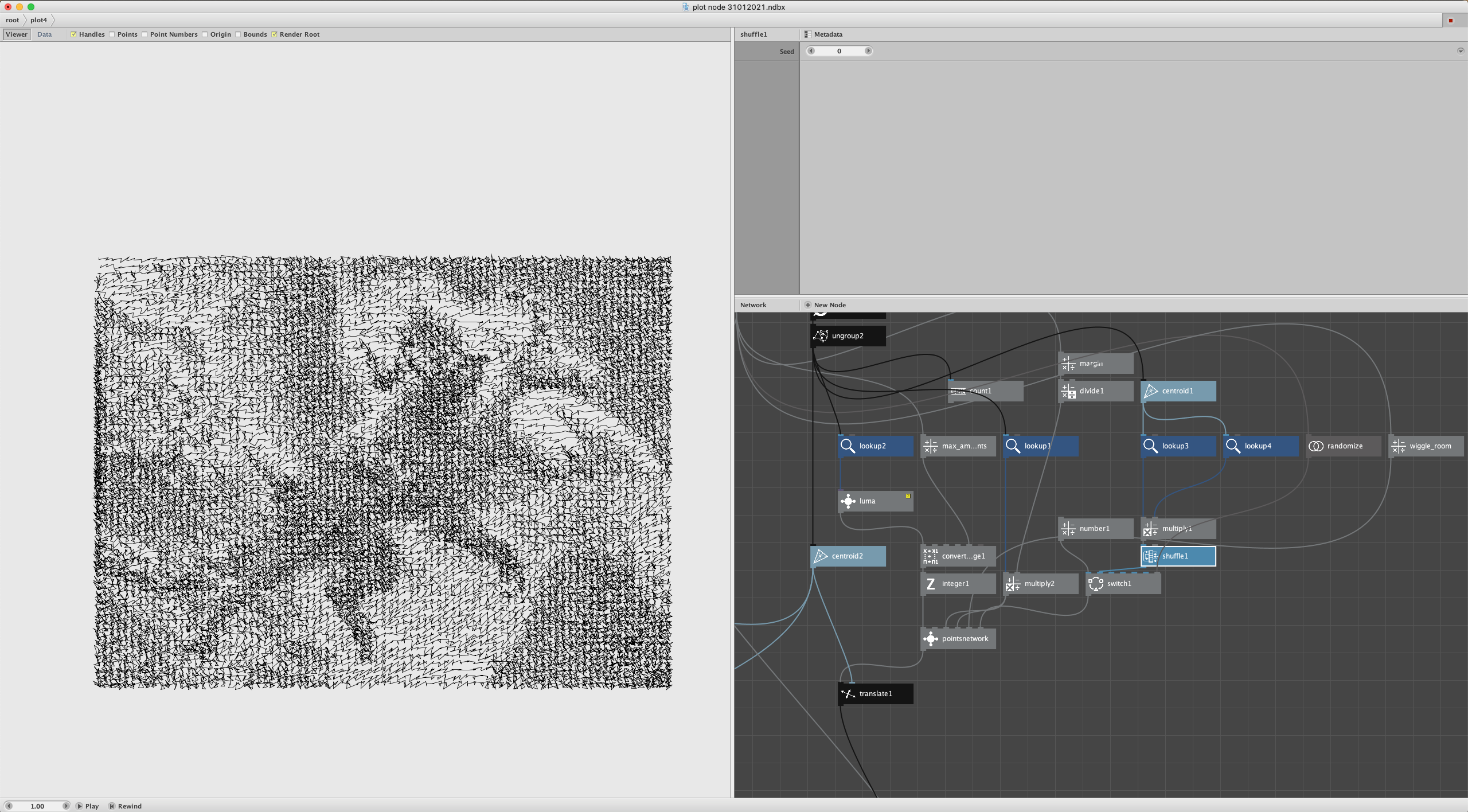
The ability to incorporate images into the pure vector world of NodeBox is probably the most often requested feature. My image node does not provide a true image object, but does the next best thing. It makes it easy to import images or portions of images as groups of "pixels" (colored rects) which you can then work with as you would any other shapes.
My image node is free for use without restrictions.
Attached is a folder containing:
- a nodebox file with the image node and other useful nodes
- image.py, the python custom code needed by the image node
- a subfolder with a few sample images to get you started.
The image node returns a pixel group (a group of colored square rects) based on an image file. I limit the total number of “pixels” to about 100K to avoid accidentally crashing NodeBox. The whole point of the image node is to get the best image you can from the fewest Nodebox pixels. You can do this by either by downsampling (sampling a subset of pixels from the original image) or by reducing the total area using a mask.
The image node takes seven inputs:
- File - a local PNG, JPG, BMP, TIFF or perhaps other formats.
- Mask (optional) - a closed shape or a list of resampled paths (e.g. concentric circles) used to limit the number of pixels
- Image Quality - seven levels ranging from 1 to 100 kilo-pixels. The higher the quality, the more sluggish Nodebox becomes
- Image Scale - the size of the displayed image as a percentage of the original image size
- Image Position - used to adjust the position of the image on the Nodebox canvas
- Output - one of three possible settings:
- Image - return the image at the current settings
- Mask - return the masked portion of the image at the highest possible quality
- Placement - shows the image dimmed and the outline of the mask, used to adjust placement of the mask
- Optimize for PNG - if checked forces pixel size to an integer value to avoid interference patterns which would occur if the image is exported as a PNG or movie. Usually causes a slight change in quality and image dimensions.
ABOUT MASKS
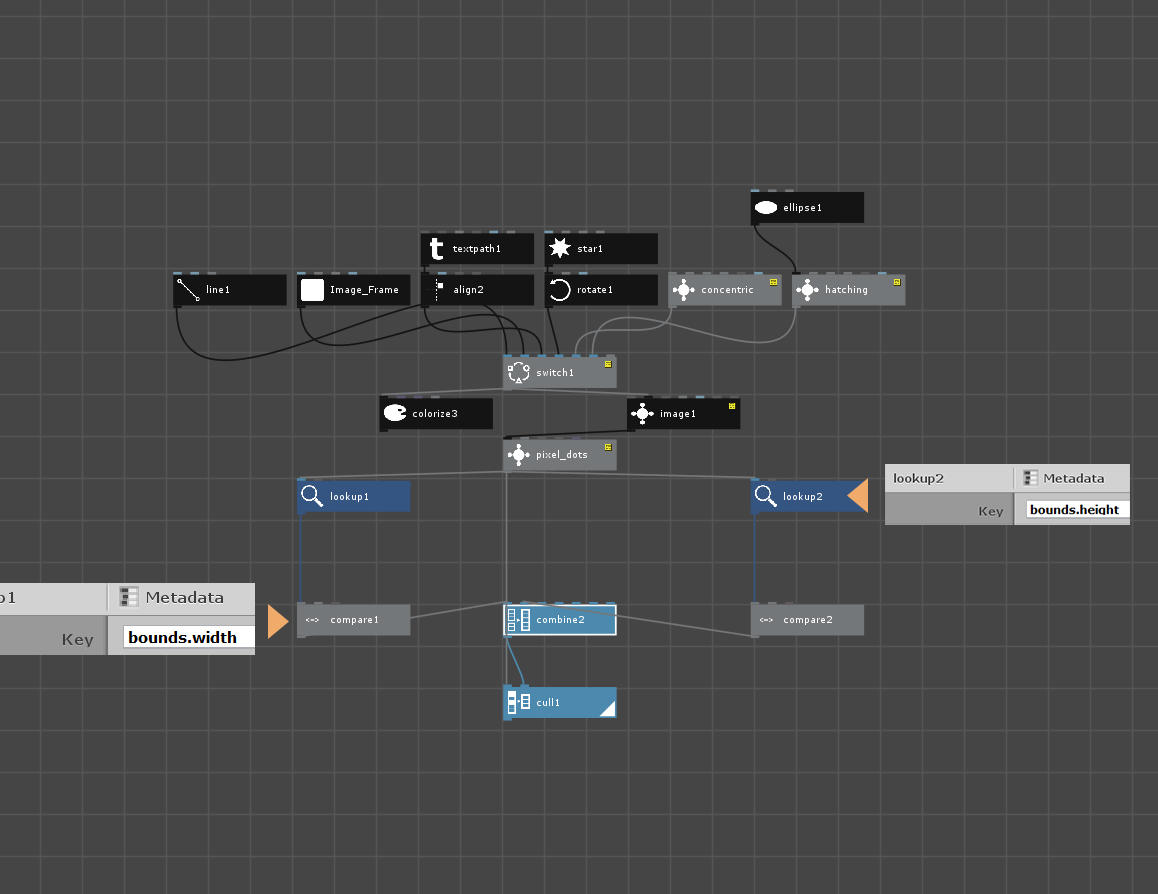
There are two kinds of masks: contiguous (a single closed shape), and discontiguous (a list of resampled paths that provide individual positions to sample from the original image). I provide six examples of masks for you to play with:
- a line with 100 points
- a rect
- a capital A
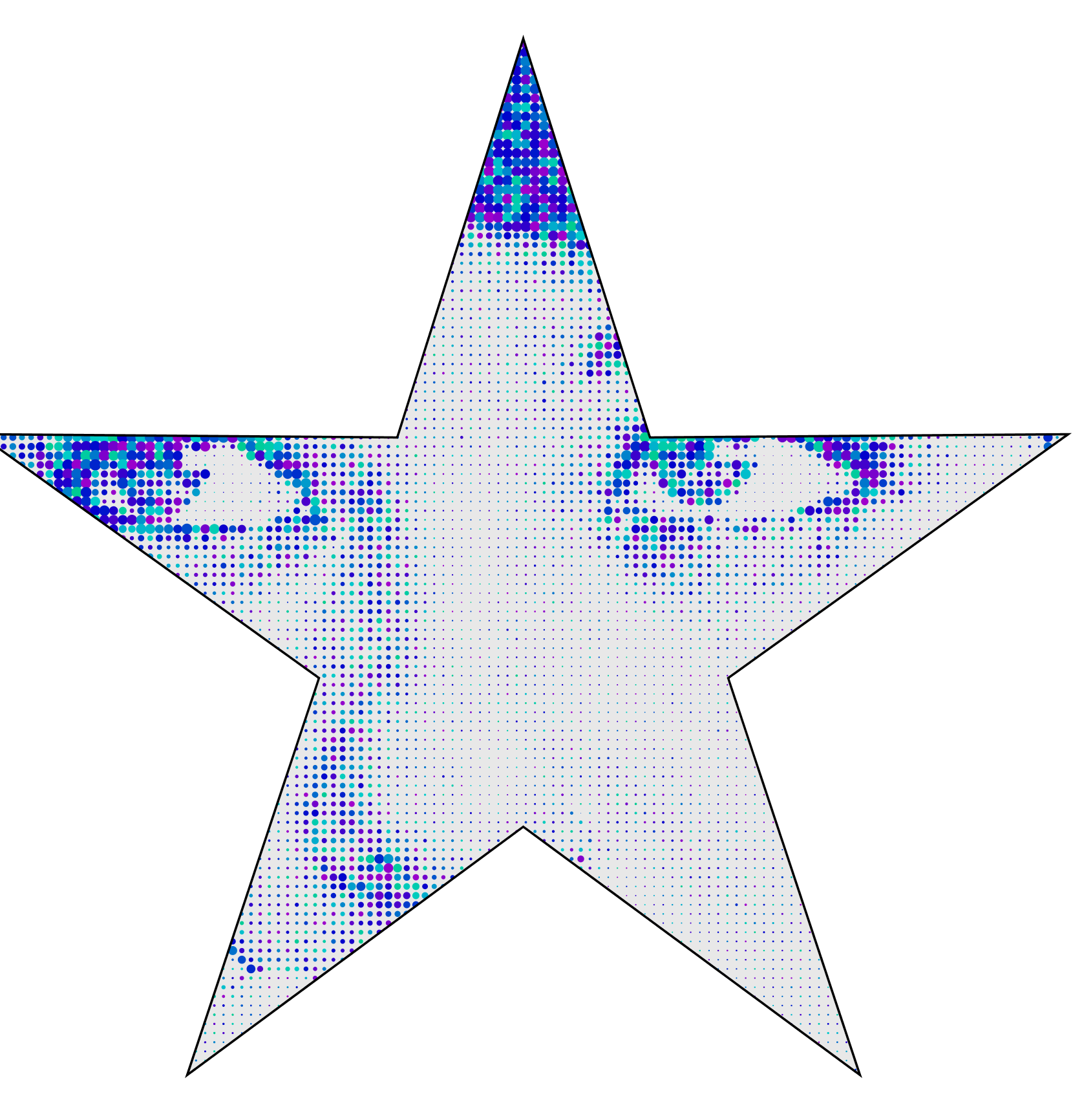
- a star
- a set of concentric circles. Use the subnetwork to control the number of rings, ring separation, point separation within each ring, etc.
- a set of angled hatching lines. Connect either a rectangular or circular bound and adjust the angle, line separation, etc.
You can easily switch between each one by setting the index on the switch from 0 to 5
The image node will always try to output the maximum quality of pixels within a mask when in mask mode, regardless of image quality settings. Optimizing for PNG will affect contiguous masks (examples 1 - 3), but not discontiguous masks (examples 0, 4 and 5).
Put the image node in Placement mode when adjusting the position of your mask relative to the current scale of the image. If you set quality to low you will be able to reposition the mask more quickly; this will not affect the output of the mask. For precise placement, increase the image quality. When placing a mask you can either keep the image fixed and move the mask feeding into the image node, or keep the mask fixed and move the image beneath it using the image position control.
FILTER AND STAT NODES
I also provide a few nodes that alter the output of an image node. The add_stats node simply displays a few basic stats beneath the output of an image node (dimensions, pixels, and pixel size). This is handy when adjusting the settings of the image node.
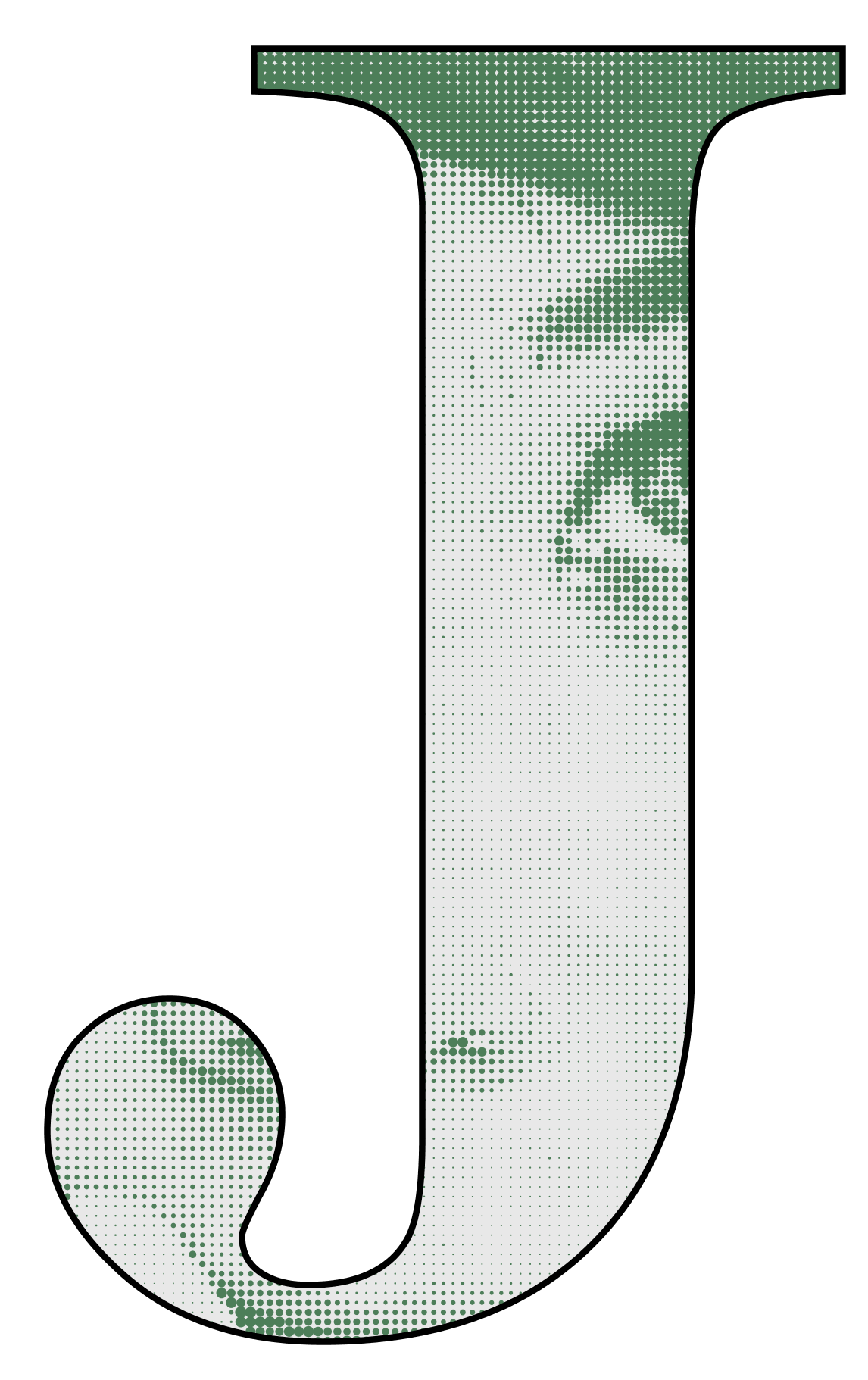
The pixel_dots node convert the square pixels of an image group into dots. You can either have uniform dots colored as the square pixels were, or have the dots sized dynamically based on the intensity of each color (its luma value). For dynamically sized dots you can keep the original colors, or use a supplied monocolor. You can also adjust the relative size of the dots; this can make the overall image appear darker or lighter.
I also show an example of how to surround the output of a contiguous mask converted to dots with the original outline of the mask, which often improves the overall look.
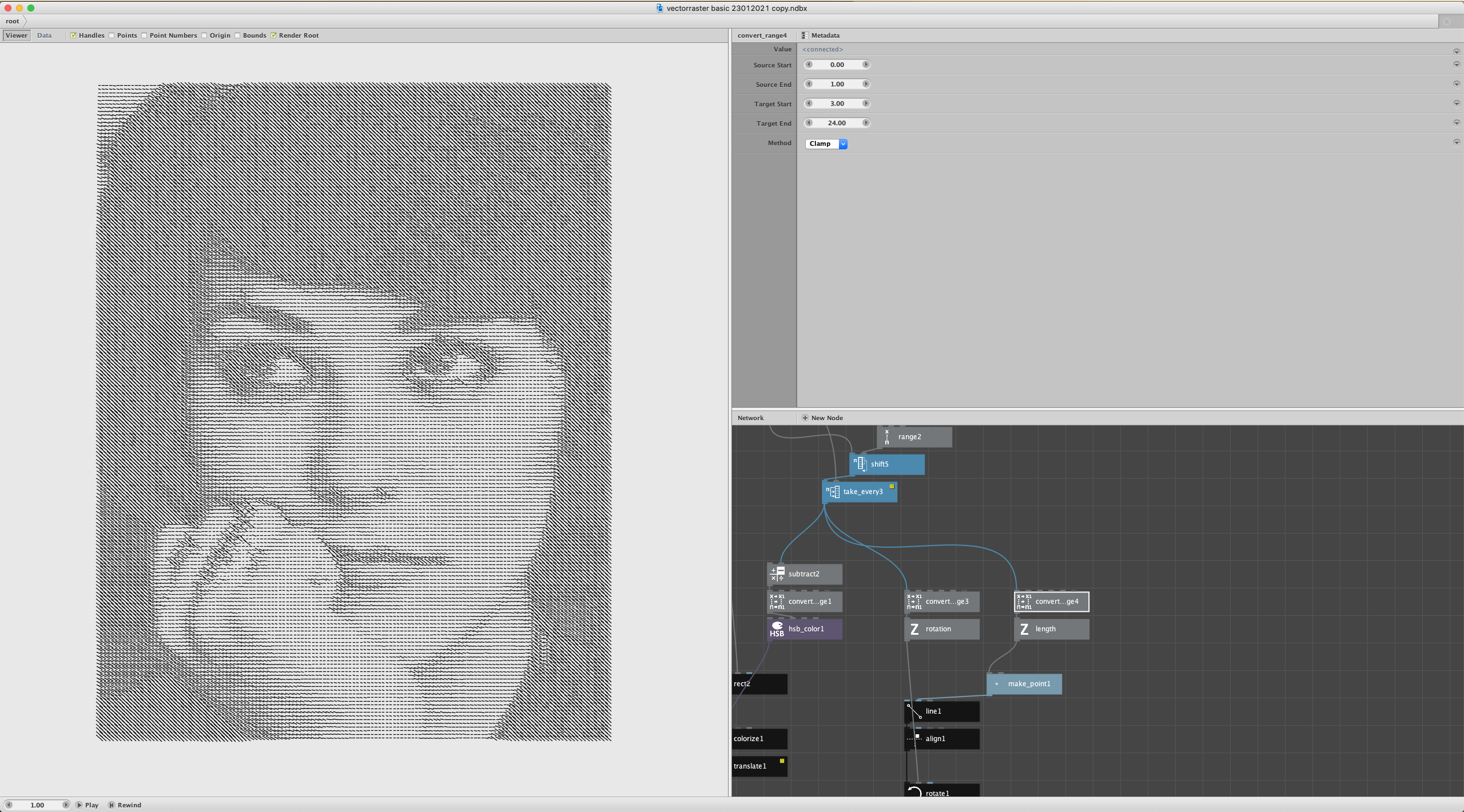
I can imagine many more possible filter nodes. You could easily make a node to adjust the hue, saturation, brightness, and alpha of all the pixels in a pixel group. You could convert the square pixels to other shapes like line segments, CMYK dots, or even ASCII art. You could convert color to grayscale or invert colors. You could map the original range of colors to a more limited color palette. And you could hook any of these filter nodes to a frame node to create interesting animations.
HAVE FUN
That should be enough to get you started. Please play with the options I have provided and point the image node at your own image files. If something breaks please let me know ASAP. If you have any questions, please ask them; I realize this is a complex node that will take some getting used to and I want to document it as clearly as possible.
I also look forward to seeing any creations you make with the image node, and any new masks or filter nodes you come up with.
Go forth and create!
John